How To: Enable LTE on iPhone 5 for T-Mobile


UPDATE 3/31/13: Now a super easy way to install. Just install the CommCenter Patch and the LTE enable from out repo. This will be a better solution for people who want to enable LTE on their unlocked iPhone 5. Not only does it save people the time and hassle of having to go into the iPhone’s system files, but it also creates an automatic backup of the original carrier.plist should the choose to revert.

Here are the steps to follow:

1. Open Cydia
2. Tap “Manage” and then tap “Sources”
3. Tap “Edit” then tap “Add” and put the following URL into the text box: http://v.backspace.jp/repo
4. Once the URL is entered in tap “Add Source” and allow for it to download all of the repo’s info and packages.
5. After your iPhone has refreshed, tap the v.backspace.jp/repo field or go to the search bar and find the package CommCenter* patch…
6. Once you have found it, install it and then reboot your iPhone once completed.

7. After the iPhone has restarted, open Cydia once again.
8. Tap “Manage” and then tap “Sources”
9. Tap “Edit” then tap “Add” and put the following URL into the text box: http://beta.leimobile.com/repo/
10. Once the URL is entered in tap “Add Source” and allow for it to download all of the repo’s info and packages.
11. After your iPhone has refreshed, tap the LEIMobile field or go to the search bar and find the package LTE Enabler for T-Mobile…
12. Once you have found it, install it and then reboot your iPhone once completed.

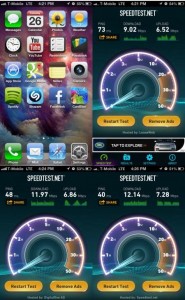
13. After the iPhone restarts, allow it to acquire signal and display the T-Mobile logo then go to where you edit the APN settings (Settings –>General–>Cellular) click reset network settings. Once that is done, enable the LTE toggle and you’re good to go. The APN to connect to T-Mobile LTE is fast.t-mobile.com and the apn for Internet Tethering on T-Mobile is pcweb.tmobile.com


Update 3/28/13 Part III: Updated the main file to fix a calling issue as people were still reporting it. ISR for LTE wasn’t enabled. The Phone, rather than connecting to the strongest signal for voice, remains connected to the LTE tower during calls and reduces call quality. The latest fix enables ISR. Just follow the instructions below the red text to install the latest version.


Update 3/28/13 Part II: Everyone Just follow the original instructions below the red text to install the new files over the previous ones. There should now be 4 files instead of 3. We added a carrier.pri file.


UPDATE 3/28/13: THE text in RED is instructions ONLY for people who installed the initial fix we released. If you are brand new or unsure proceed with the 15 step instructions below the RED Text

Users have reported bad calling quality, inability to make/receive calls, and downgrading to 4G HSPA+ while on a phone call. We did take note of the issue and took a close look at the LTE coding. VoLTE (Voice over LTE) was enabled by mistake but has been fixed in this updated version. Please follow the below instructions to fix this issue. If you have any other concerns or problems please leave a comment below.

1. On your iPhone please tap this link: http://iphone2.googlecode.com/files/T-Mobile%20LTE%20V2.zip
2. Tap “Open in iFile” and once in iFile tap “Unarchiver”. A new version of the “Overrides_N41_N42.pri” will appear.
3. Tap the clipboard icon at the bottom and tap “cut”
4. Now tap “done” at the top and tap the house icon at the bottom then tap “Library”, then tap “Carrier Bundle.bundle” (the one with blue text), and then tap edit at the top again and tap the clipboard icon. Tap “paste” and it will auto inject the updated carrier file into the carrier folder. Be sure to chose the overwrite option.
5. After this has been done, exit iFile and reboot your iPhone. That’s it!

Did this fix your issue? Please let us know below in the comments section.

START HERE Manual method: 

So you purchased an unlocked iPhone 5 before T-Mobile released their new version of the iPhone 5 that supports 1700mhz. This could be the AT&T model or the officially unlocked version sold by Apple. Please understand that if you have a Verizon iPhone 5 you will not be able to connect to T-Mobile’s LTE network. It does not have the correct LTE band. Currently T-Mobile only has a few cities listed that have support for LTE and they are upgrading towers all year long.

Now that you have an unlocked AT&T model A1428 or an officially unlocked model A1428 you can proceed to follow the instructions below to load a custom carrier file onto your iPhone and enable LTE. This will only work on A1428 model iPhone 5′s.

This is the guide to enabling LTE on your iPhone 5 model A1428 for T-Mobile.

1. Open Cydia
2. Tap “Manage” and then tap “Sources”
3. Tap “Edit” then tap “Add” and put the following URL into the text box: http://v.backspace.jp/repo
4. Once the URL is entered in tap “Add Source” and allow for it to download all of the repo’s info and packages.
5. After your iPhone has refreshed, tap the v.backspace.jp/repo field or go to the search bar and find the package CommCenter* patch…
6. Once you have found it, install it and then reboot your iPhone once completed.

7. After the iPhone has restarted, open Cydia once again.
8. Search for iFile. The free version includes basic features. You will want to purchase it to take advantage of all of the features.
9. Once you have found it, install it. No reboot is required, though you can do it just to be on the safe side.

10. Once iFile has been installed, close Cydia and click on this file from your iPhone and click “Open in iFile”
11. Once you’re in iFile tap “Unarchiver” and 3 files will show up above T-Mobile LTE.zip
12. At the top, tap “edit”and tap the dots with a check mark next to carrier.plist, carrier.pri, overrides_N41_N42.plist, and overrides_N41_N42.pri
13. Tap the clipboard icon at the bottom and tap “cut”
14. Now tap “done” at the top and tap the house icon at the bottom then tap Library, then tap Carrier Bundle.bundle (the one in blue), and then tap edit at the top again and tap the clipboard icon. Tap “paste” and it will auto inject the carrier files into the carrier folder overwriting the other files. (you may want to make a backup of these files in case anything goes wrong or we have a backup below.)

15. After the files have been placed, exit iFile and restart iPhone. After the iPhone restarts, allow it to acquire signal and display the T-Mobile logo then go to where you edit the APN settings (Settings –>General–>Cellular) click reset network settings. Once that is done, enable the LTE toggle and you’re good to go. The APN to connect to T-Mobile LTE is fast.t-mobile.com and the apn for Internet Tethering on T-Mobile is pcweb.tmobile.com


Here is a link to the original file in case you run into any issues. Download the original carrier file here. replace carrier.plist with the file you just downloaded. You also need to delete any overrides_N41_N42 files and the new carrier.pri included in the Release 2 bundle that were placed in the Unknown.bundle carrier bundle.

If you run into any problems please leave a comment below. A rare issue that happens is that is doesn’t work while the apn settings tab disappears. A simple fix to this is to go into var/mobile/Library/Carrier Bundles/overlay and delete any and all files in that folder and then restarting the phone 2 times. The first reboot you need to let it acquire signal. It will take awhile but will eventually acquire it. After the signal is found it will say T-Mobile 3G and then this will be where the 2nd reboot must be done. After the 2nd reboot it will acquire signal faster this time and display T-Mobile 4G. Once you see the 4G icon that’s when you know it has worked. But this is a rare occurrence but should be a disclaimer and this fix should be available to the people that install it.


[Thanks Joe Brown! for the initial fix! Thanks Sky Zangas for the Debian Package!]

Incoming search terms:

  • fast t-mobile com
  • tmobile iphone 5 lte settings
  • how to enable lte on iphone 5
  • t-mobile lte apn
  • iphone 5 apn settings for tmobile
  • how do I set T-Mobile 4G LTE APN on iPhone 5
  • t mobile lte apn settings
  • leimobile lte
  • leimobile tmobile lte
  • t mobile iphone 5 lte settings
read more

5.0 – 5.1 Unlock iPhone 4S, iPhone 4, iPhone 3GS SAM Tutorial

Here is a nice little trick to unlock your iPhone. It is good for 3 years even if Apple closes the loop hole. This unlock will work on any baseband as long as your jailbroken on iOS 5.0, iOS 5.0.1, or iOS 5.1. To get started you will need to know what carrier your iPhone is currently locked to, your Jailbroken iPhone you want to unlock to use on a different carrier like T-Mobile, and a computer with the latest version of iTunes installed with a working internet connection for activation.

  1. Launch Cydia from your iPhone.
  2. Click on Manage at the bottom.
  3. Press the Sources button.
  4. Click Edit in the top right corner.
  5. Click add and type: http://repo.bingner.com and press Add Source.
  6. Click the return to Cydia button and then click on the source Bingner.
  7. Click on SAM (Subscriber Artificial Module).
  8. Press install on the upper right corner. Then Confirm. Then press reload SpringBoard.
  9. You will now be taken back to your iPhone’s home screen and will see a new icon titled SAMPrefs. Click and open it.
  10. Tap Utilities from within the program.
  11. Select De-Activate iPhone. Your iPhone will deactivate.
  12. Under More Information, confirm that your iPhone is deactivated and that SAM is enabled.
  13. Tap Method and choose By Country and Carrier.
  14. Tap Country and choose the Country of the sim the phone was originally locked to.
  15. The choose carrier and click on the carrier the phone is locked to. NOT YOUR SIM your trying to unlock. (For some carriers operating more than one Carrier ID you may need to select SIM ID.)
  16. Click More Information and copy the IMSI under SAM Details to the clipboard.
  17. Next Tap Spoof Real Sim to SAM.
  18. Go back to the main SAM screen and past the IMSI number that you copied earlier.
  19. Connect your iPhone to iTunes and let it activate your iPhone. ”Double click “Phone Number” parameter at the main device screen and make sure that the ICCID matches that of your SIM card.”
  20. Unplug your iPhone from the computer and close iTunes.
  21. Reopen SAMPrefs on the iPhone and disable it.
  22. Connect your iPhone to the computer again and open iTunes. You will get a message that says “The iPhone failed to actiave. Please try again later.” This is normal. Just close iTunes and open it back up. You will then get a signal shortly and your iPhone is unlocked.
  23. You should now backup your iPhone unlock ticket in case this method is ever blocked.
  24. Push notifications may stop working after this procedure but can be easily restored with “clear push” utility in SAM followed by connecting to iTunes.

    Your phone will work normally with your SIM card and that SIM card ONLY since we have tricked iTunes to think that ICCID is one of the intended carrier’s. The phone can be rebooted and connected to iTunes freely without losing the “unlock”, at least for now.


Incoming search terms:

  • leimobile source cydia
  • Spoof Text Message Free
  • iphone 5 basic tutorials
  • lei mobile source cydia
  • lei cydia source
  • simple mobile iphone settings cydia
  • iphone3 1_6 0_10a523 jailbreak
  • descargar ipod4 1_6 0_10a523
  • spoof text free cydia
  • dtvrunner download
read more

Simple Mobile iPhone MMS Settings For iOS 5

These are the settings you need to get MMS working on your iPhone running iOS 5.0 and above.  This includes iOS 5.1.1 and iOS 6.0. There are 2 ways to get MMS working on your Simple Mobile iPhone. The first requires you to jailbreak. This is the easiest way. If you have a factory unlocked iPhone, you can use the iBackupbot method below to get mms working without a jailbreak.

If you are on the $25 15 Day Talk & Text plan, you cannot use MMS as a data plan is required. When your current plan expires, upgrade your plan to one that includes data so you may take advantage of the MMS feature.

1.  Add our Cydia repo to find the iPhone MMS Fix for Simple Mobile.
Our Repo is  http://beta.leimobile.com/repo/
Once you install the fix you will need to reboot your phone and go into settings->general->network and make sure the APN is correct.

The settings should look like this:

Apn: simple
Mmsc: http://smpl.mms.msg.eng.t-mobile.com/mms/wapenc
Mms proxy: 216.155.165.050 You may need to change the proxy to 216.155.165.50:8080
Mms max: 1048576
Mms ua prof URL: http://www.apple.com/mms/uaprof.rdf

If you are using the $40 TalkTextILD plan, you cannot use MMS as a data plan is required. When your current plan expires, upgrade your plan to one of the data capable plans – 50MB or 150MB – that Simple Mobile offers.


2. If you are unable to jailbreak and/or have a factory unlocked iPhone you can use iBackupBot which allows you to modify files on your iPhone without jailbreaking.
1. First things first. Make a full backup of your iPhone in iTunes.
2. Download the program iBackupBot. Make sure to select Mac or Windows. You may use the free trial, but it is best to purchase!
3. Launch iBackupBot and just hit OK to all of the messages that may pop up. It may take a while to load all the device information if you have multiple backups saved on your computer.
4. Once loaded you will want to find your most recent backup on the left had side and select it.
5. Next you will see a list of files show up in the righthand box. Scroll down until you see Library/Preferences/com.apple.mms_override.plist.

6. Double click on the mms override.plist and it will pop up a box to edit the file.
7. Download this com.apple.mms_override.plist and paste the contents into the box or manually write it out. It should looks similar to the picture below which is for T-Mobile. Simple Mobile’s will look a bit different. The MMSC string should be http://smpl.mms.msg.eng.t-mobile.com/mms/wapenc

8. Now put a checkmark in the box next to Library/Preferences/com.apple.mms_override.plist and then click on File at the top and select restore.
9. iBackupBot will restore this new edited file onto your iPhone.
10. I will make a video Tutorial soon.

Incoming search terms:

  • iphone3 1_6 0_10a403
  • simple mobile mms settings for iphone 4 ios 5 1 1
  • iphone 5 simple mobile
  • plist for simple mobile
  • ios 5 0 1 tmobile mms
  • simple mobile iphone 4s mms
  • simple mobile iphone 5
  • lei mobile mms fix t mobile
  • simple mobile iphone 4 ios 5
  • betaleimobile
read more

[UPDATED] Review + Tutorial: iPhone IMEI Remote Unlock


AT&T iPhone IMEI Unlocking Service Only $35


iPhone Unlocking is now illegal. Message us for more details.
 

[Update] Hey guys, if you want to ensure that your unlock stays forever (even if Apple makes your IMEI uneligable again, download SAM Prefs by going to Cydia and adding the source “http://repo.bingner.com”.

Then after you install (you must reboot) you have to go into the app (should be a SIM card) and tap “utilities” and then backup activation. Your NCK (unlock) will be sent to the cloud where it can be restored later. :)

Hey guys, well, as you may have heard, there are now new ways to unlock your iPhone! Now, this is a great service, why? You don’t need to care about baseband updates anymore!

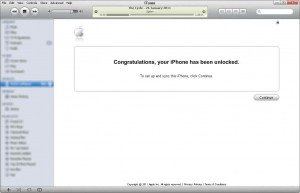
Once you are unlocked via IMEI, then all you have to do is plug it into iTunes.

Today, I will be reviewing an unlocking service, unlock-network.com.

Unlock-Network.com is a very well organized company that was great to work with. They are also very reliable and were the only ones that I felt could handle my personal information.

Now, I’ve made a video showing you how the whole process happens:

So basically, this is how it all works. You go to Unlock-Network.com and you choose which device you want to unlock (in my case, it was the iPhone 3G [S]). Then, you just enter your IMEI (to find your IMEI, dial *#06# on your iPhone) and then choose which network the phone is locked to. (Everyone in the U.S. should click “AT&T/Cingular”.)

Then, you have the option to pay with either PayPal or Google Checkout. It will be $174.99 for an iPhone.

Now, it may look like a steep price at first, but keep in mind that if you live in the U.S. you would have to pay atleast $1,000 for a phone from another country. If you want to have a 32 GB model, then it goes up to $1,500, at least.

It’s a good deal that can potentially save you hundreds.

Now, the unlock is performed remotely, to finish the unlocking process, plug your iPhone into an internet-enabled computer and sync with iTunes.

That’s it!

It’s incredibly easy and I can confirm that this works 100%! It took a matter of hours for me to recieve my confirmation that it was unlocked.

They advertise a 24-48 hours delivery time. They will also give you your money back if the unlock doesn’t work for any reason.

This will work on all baseband versions (they even advise you to update to iOS 4.3.1/4.3.2 before unlocking) and it will work on any and all models of the iPhone 3G [S] and iPhone 4.

So there you go guys! Happy unlocking!

Thanks to Unlock-Network.com for the unlock!

Here’s an image gallery that shows you some highlights from the unlock process:

Incoming search terms:

  • iphone imei unlock
  • unlock iphone imei
  • imei iphone unlock
  • iPhone remote unlock
  • imei unlock iphone
  • remote unlock iphone 4
  • iPhone 4 imei unlock
  • remote unlock iphone
  • imei unlock iphone 4
  • iphone 4 remote unlock
read more

Tutorial: Prevent iPhone 4 Baseband Update iOS 4.3.1 Upgrade


Now that UltraSn0w has been updated to support iOS 4.3.1 and the jailbreak is also untethered, you can now easily upgrade to the latest iOS and preserve your baseband so that you can unlock your iPhone 4.  This tutorial will show you how to preserve your iPhone 4 baseband and unlock.  This is assuming that you have modem firmware 01.59.00.

Sn0wBreeze is a windows version of PwnageTool that will create a custom firmware and preserve your baseband, You can easily use either of these tools but for this tutorial I will show you how to use TinyUmbrella to preserve your baseband and upgrade to iOS 4.3.1 and then run RedSn0w to jailbreak.  This tutorial will work on both Mac and windows.  Just be sure to download the correct programs.

1. Download the latest TinyUmbrella.

2. Start Tiny Umbrella with your iPhone 4 plugged in. Save your SHSH files for iOS 4.3.1. (You should be saving your SHSH files whenever a new firmware comes out!)

3. Click on Start TSS Server. If you get any errors, visit the TinyUmbrella FAQ page and fix the errors before continuing.

4. Launch iTunes and click on restore while holding down the shift key if you are on Windows or the option key if you are on a Mac.

5. Select the iPhone 4 iOS 4.3.1 firmware file. If you don’t have it you can download it here: iPhone 4 Firmware restore file for 4.3.1 (If it saves as a .zip file make sure to rename it to .ipsw).

6. The restore process should get a 1013 error. Click on OK and close out of iTunes. Your iPhone 4 will have a connect to iTunes logo displaying. If you get an error other than 1013, it means your baseband was updated. This is likely because you did not have the TSS server running or you are using a device other than an iPhone 4.

7. We need to get the iPhone 4 into DFU mode by holding the home and power button until the screen goes black. Then count to 2 and let go of the power button but keep holding down the home button. Your screen will turn black if you did it correctly. If not you will see an Apple logo and the screen will go back to the connect to iTunes logo. If you see this you need to start step 7 over.

8. Once you are in DFU mode you will need to download Fix Recovery to get out of recovery mode. [Windows Download] [OS X Download]

9. Run Fix Recovery and it will get you to the iPhone activation screen.

10. You will now need to activate your iPhone 4.  To activate it the correct way you will want to put whatever sim card the iPhone is locked to in and start iTunes.  Most iPhone are locked to AT&T so put in any AT&T sim in to activate. It does not need to have service.  If you do not have a sim to activate we will use RedSn0w to Hacktivate.

11. Start RedSn0w and jailbreak. RedSn0w will hacktivate if you did not activate officially in step 10:

redsn0w_0.9.6rc12: (current version as of writing this)

12. Once you are done following the RedSn0w instuctions you will have Cydia on your iPhone’s home screen.  Launch Cydia, do all of the updates and then install the UltraSn0w package to unlock.  You will also want to download our T-Mobile MMS fix if you are on T-Mobile.

Incoming search terms:

  • iphone 4 baseband
  • update iphone 4 baseband
  • upgrade baseband iphone 4
  • save baseband
  • how to upgrade iphone 4 baseband
  • prevent baseband update iphone 4
  • prevent iphone 4 baseband update
  • how to keep baseband on iphone 4
  • How to save baseband
  • update iphone 4 keep baseband
read more
Page 1 of 212