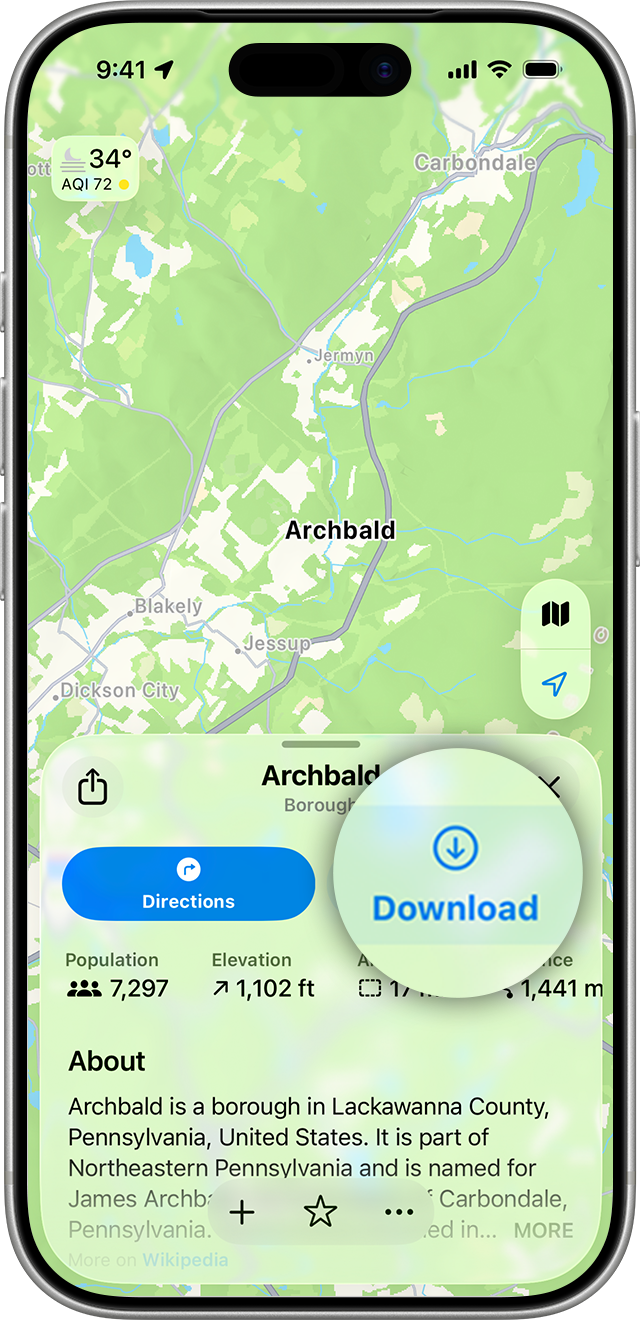
Holiday traffic is frustrating enough without losing navigation when cellular coverage fades. Before a Thanksgiving road trip, download the important parts of your route in Apple Maps. Your iPhone can then provide place information, estimated arrival times, and turn-by-turn directions even when Wi-Fi and cellular service are unavailable.
Apple has supported offline maps since iOS 17, but the feature is easy to forget because Maps normally handles connectivity in the background. A few minutes of preparation can give you a useful fallback for rural highways, crowded travel corridors, underground parking garages, and areas where a carrier is overloaded.
How to download an offline map on iPhone
Open Maps, search for your destination, and select it from the results. If a Download button appears on the place card, tap it. Otherwise, tap More and then Download Map. Resize the box so it covers the roads around your destination and the route you expect to use, then tap Download.
You can also manage everything from one screen. Tap your picture or initials next to the Maps search field, choose Offline Maps, tap the add button, and search for a city or select your current location. Apple shows the estimated file size before the download begins, so you can decide how much territory to save.
Do not select only a narrow strip between two points. Include alternate highways and nearby towns in case traffic, construction, or weather forces a detour. If your trip crosses a large rural area, several smaller downloads may be easier to manage than one oversized region.
What still works without a connection
According to Apple’s offline maps support guide, a downloaded area can include hours and ratings for places, estimated arrival times, and turn-by-turn directions for driving, walking, cycling, or transit. Availability varies by region, so confirm that the Download option appears for the area you need.
An offline map is a safety net, not a guarantee that every live feature will behave exactly as it does online. Real-time conditions can change after the map is downloaded, and services that depend on current network data may be limited. Check the route while you still have service, pay attention to road signs, and never follow a direction that conflicts with a closure or local instruction.
Check these settings before departure
In Maps, tap your picture or initials and open Offline Maps. Apple provides several settings worth reviewing:
- Automatic Updates: Leave this on so downloaded maps can receive changes such as renamed streets or updated businesses.
- Downloads: Choose whether new maps download only over Wi-Fi. A large region can consume substantial cellular data.
- Optimize Storage: Enable this if space is tight; Maps can remove downloads that have not been used for a while.
- Only Use Offline Maps: This forces Maps to rely on saved data even when an internet connection is available. It is useful for testing, but most travelers should turn it back off afterward to regain current online information.
Open each saved map to rename it, resize the covered area, check its storage use, or delete it. Before leaving, confirm the download is complete rather than still queued on Wi-Fi.
Test the map instead of assuming it worked
While you are still at home, choose Only Use Offline Maps and request directions inside the downloaded region. Zoom in along the route and verify that key exits and the destination appear. Turn the setting off when the test is finished.
Also make sure the iPhone has enough battery for a long navigation session. Bring a car charger and cable, and mount the phone where it does not obstruct your view. If someone else is traveling with you, share the destination before departure so another device can provide a backup route.
Offline maps can help on Apple Watch, too
Apple says downloaded maps can be viewed on a compatible Apple Watch when the paired iPhone is turned on and within Bluetooth range—about 33 feet or 10 meters. See Apple’s Watch guide for the current requirements. The maps do not sync independently across all Apple devices, so a map downloaded on one iPhone should not be assumed to exist on another phone or iPad.
The best time to download is before travel day
Save the map on Wi-Fi the night before your trip, expand it to cover realistic detours, and run a quick offline test. Then leave Automatic Updates enabled and verify the download again before you pull out of the driveway.
Offline maps will not eliminate holiday delays, but they remove one avoidable point of failure. If reception disappears, you can keep moving instead of waiting for the map to reload. Apple notes that coverage and features differ by location; its iOS feature availability page is the place to check regional support.
Leave a Reply