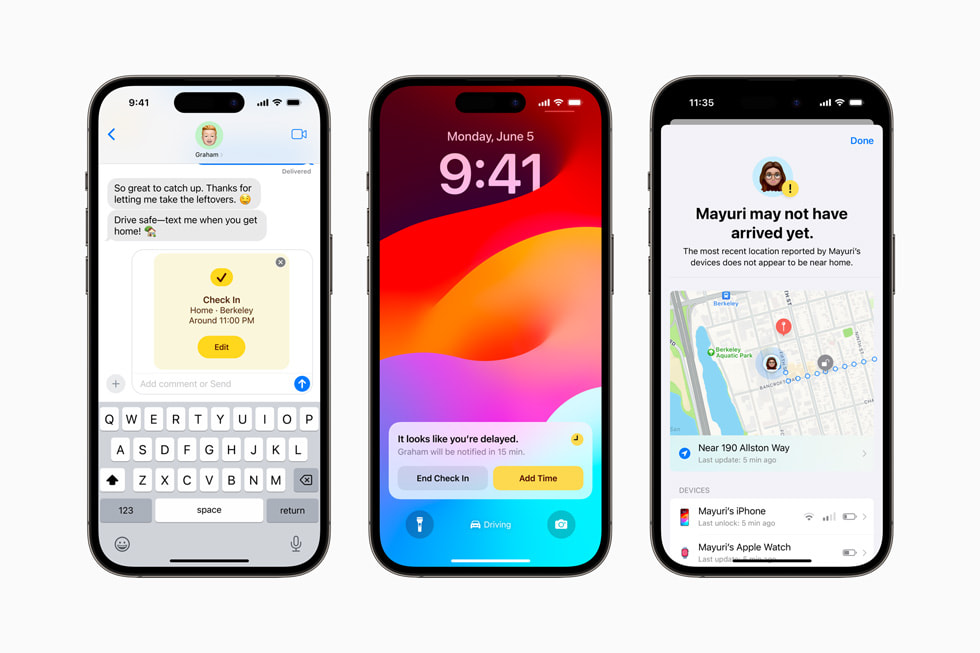
Holiday travel comes with one predictable text message: “Let me know when you get there.” Instead of remembering to send that message after a long drive, train ride, or walk back to a hotel, iPhone can handle it automatically. Apple’s Check In feature in Messages tells a trusted person when you arrive and can share selected information if your trip does not go as planned.
That makes Check In especially useful during Thanksgiving week, when traffic, weather, crowded airports, and late-night travel can all change an arrival time. It takes less than a minute to start, but there are a few privacy and compatibility choices worth understanding before you leave.
What iPhone Check In actually does
Check In is part of the Messages app. According to Apple’s current iPhone User Guide, both the sender and recipient need iOS 17 or later. You can set it to watch a journey to a destination or run for a specific amount of time.
For a destination-based Check In, you choose where you are going and whether you are driving, taking transit, or walking. Your iPhone monitors progress and automatically tells your contact when you arrive. If you stop making progress for an extended period or miss the expected arrival, iPhone prompts you. If you do not respond, your chosen details become available to the recipient.
The timer option is useful when there is no obvious destination. Apple suggests it for situations such as meeting someone new, but it can also fit a rest stop, a solo walk, or any period when you want someone to expect an update. End the Check In before the timer expires; otherwise, your contact is notified.
How to start a Check In before you travel
- Open Messages and select a conversation with the person you trust.
- Tap the Apps button beside the message field, tap More, then choose Check In.
- Tap Edit.
- Choose When I Arrive for a trip or After a Timer for a set period.
- For a trip, confirm the destination and travel method. Add extra time if holiday congestion makes Apple’s estimate look optimistic.
- Tap Send.
If plans change, open the conversation and tap Details on the Check In card. From there you can add time or cancel the Check In. Adding time is better than ignoring a prompt, because it prevents unnecessary concern and keeps the recipient’s information current.
Choose Limited or Full data before leaving
The recipient does not continuously receive all of your travel data. The details you select are shared if you fail to complete the Check In as expected. To review the setting, go to Settings > Apps > Messages > Check In Data.
- Limited shares your current location plus network signal and battery information for your iPhone and Apple Watch.
- Full adds the route you traveled and the last time you unlocked your iPhone or removed your Apple Watch.
Limited is the sensible default for many trips because it provides useful status information without revealing a complete route. Full can be appropriate when traveling alone, driving a long rural route, or when a trusted family member may need more context. Apple says Check In information is end-to-end encrypted.
Do a 30-second test before Thanksgiving
Try Check In with the intended recipient before travel day. Confirm that both phones are updated, that the feature appears in Messages, and that the recipient understands what the notification means. Pick someone likely to notice the alert and able to call you—not a large group thread that everyone assumes someone else is watching.
Also remember the limits. If your iPhone loses service or powers off after a Check In begins, Apple says the recipient may receive a delayed or early notification and may be offered the details you selected. Keep your phone charged, and do not treat Check In as a replacement for calling emergency services when immediate help is needed.
The practical takeaway
For holiday travel, Check In turns a good intention into an automatic safety habit. Set the destination, choose the right privacy level, send it to one reliable person, and let your iPhone close the loop when you arrive. You may still send the traditional “Made it!” text—but nobody has to wait for it.
Leave a Reply