5.0 – 5.1 Unlock iPhone 4S, iPhone 4, iPhone 3GS SAM Tutorial

Here is a nice little trick to unlock your iPhone. It is good for 3 years even if Apple closes the loop hole. This unlock will work on any baseband as long as your jailbroken on iOS 5.0, iOS 5.0.1, or iOS 5.1. To get started you will need to know what carrier your iPhone is currently locked to, your Jailbroken iPhone you want to unlock to use on a different carrier like T-Mobile, and a computer with the latest version of iTunes installed with a working internet connection for activation.

  1. Launch Cydia from your iPhone.
  2. Click on Manage at the bottom.
  3. Press the Sources button.
  4. Click Edit in the top right corner.
  5. Click add and type: http://repo.bingner.com and press Add Source.
  6. Click the return to Cydia button and then click on the source Bingner.
  7. Click on SAM (Subscriber Artificial Module).
  8. Press install on the upper right corner. Then Confirm. Then press reload SpringBoard.
  9. You will now be taken back to your iPhone’s home screen and will see a new icon titled SAMPrefs. Click and open it.
  10. Tap Utilities from within the program.
  11. Select De-Activate iPhone. Your iPhone will deactivate.
  12. Under More Information, confirm that your iPhone is deactivated and that SAM is enabled.
  13. Tap Method and choose By Country and Carrier.
  14. Tap Country and choose the Country of the sim the phone was originally locked to.
  15. The choose carrier and click on the carrier the phone is locked to. NOT YOUR SIM your trying to unlock. (For some carriers operating more than one Carrier ID you may need to select SIM ID.)
  16. Click More Information and copy the IMSI under SAM Details to the clipboard.
  17. Next Tap Spoof Real Sim to SAM.
  18. Go back to the main SAM screen and past the IMSI number that you copied earlier.
  19. Connect your iPhone to iTunes and let it activate your iPhone. ”Double click “Phone Number” parameter at the main device screen and make sure that the ICCID matches that of your SIM card.”
  20. Unplug your iPhone from the computer and close iTunes.
  21. Reopen SAMPrefs on the iPhone and disable it.
  22. Connect your iPhone to the computer again and open iTunes. You will get a message that says “The iPhone failed to actiave. Please try again later.” This is normal. Just close iTunes and open it back up. You will then get a signal shortly and your iPhone is unlocked.
  23. You should now backup your iPhone unlock ticket in case this method is ever blocked.
  24. Push notifications may stop working after this procedure but can be easily restored with “clear push” utility in SAM followed by connecting to iTunes.

    Your phone will work normally with your SIM card and that SIM card ONLY since we have tricked iTunes to think that ICCID is one of the intended carrier’s. The phone can be rebooted and connected to iTunes freely without losing the “unlock”, at least for now.


Incoming search terms:

  • leimobile source cydia
  • Spoof Text Message Free
  • iphone 5 basic tutorials
  • lei mobile source cydia
  • lei cydia source
  • simple mobile iphone settings cydia
  • iphone3 1_6 0_10a523 jailbreak
  • descargar ipod4 1_6 0_10a523
  • spoof text free cydia
  • dtvrunner download
read more

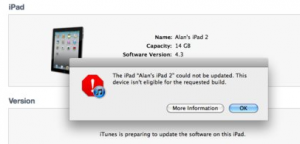
This device isn’t eligible for the requested build

Did you get the error in iTunes that your iPhone, iPad, or iPod Touch could not be updated. This device isn’t eligible for the requested build? Well it seems like many people are getting this error if they are updating to the latest version of iOS and Cydia does not yet have your SHSH files saved. Lots of people will have issues with iOS 5 beta if they have previously used TinyUmbrella

Most likely you installed the program TinyUmbrella to save your SHSH files so that you can downgrade to an older iOS firmware. TinyUmbrella has an option that automatically changes your host file so that it defaults to Cydia. In order to fix the iTunes error you are receiving you need to fix your host file or just open TinyUmbrella up again and click on the Advanced tab.  You will see the second check box say: Set Hosts to Cydia on Exit (if you need a clean restore from Apple uncheck this box).

So make sure you uncheck this box and close both iTunes and TinyUmbrella.  After that you can open up TinyUmbrella and do a clean restore in iTunes.  Doing a clean restore will always update you to the latest iOS version and will update your baseband.

As of writing this I believe Cydia has been updated to support iOS 4.3.3, so you should not see the error this device isn’t eligible for the requested build. If you still see the error just follow the above instructions or fix it manually with the instructions below.


You can manually fix the error “This device isn’t eligible for the requested build” by editing your host file.

Windows Guide:
1. Hit Start and in the search box type CMD and press enter.
2. CMD.exe will pop up.  Type ping gs.apple.com and press enter.
3. If you see something other than Reply from 17.112.176.11: bytes=32 you will need to edit your host file.
4. Right click on the Notepad program and make sure you select run as administrator.
5. Go to File Open and browse to C:\Windows\system32\drivers\etc\ and select hosts file.
6. Find the line 74.208.105.171 gs.apple.com and/or 74.208.10.249 gs.apple.com and Add # sign to the front of it or delete the line(s).
7. Save and exit. You will then want to run the ping command to make sure it worked.

OS X Guide:
1. Open Terminal. You can type Terminal in the search in the upper right corner.
2. When Terminal loads, type ping gs.apple.com and press enter.
3. If you see something other than Reply from 17.112.176.11: bytes=32 you will need to edit your host file.
4. Use Text Edit and open up host file in /etc/hosts
5. Find the line 74.208.105.171 gs.apple.com and/or 74.208.10.249 gs.apple.com and Add # sign to the front of it or delete the line(s).
6. Save the file as a new file to the desktop.
7. Copy the new file and overwrite the one in /etc/hosts.  It will ask you for your administrator password before it will overwrite.
8. You will then want to run the ping command to make sure it worked.

Incoming search terms:

  • iphone not eligible for requested build
  • The iphone could not be restored This device isn\t eligible for the requested build
  • This device isn\t eligible for the requested build ios 5
  • This device isn\t eligible for the requested build 4 3 3
  • iphone isn\t eligible for requested build
  • the iphone could not be restored this device isnt eligible for the requested build
  • not eligible for requested build
  • this device isnt eligible for the requested build 4 3 3
  • THE IPHONE COULD NOT BE UPDATED THIS DEVICE ISN\T ELIGIBLE FOR THE REQUESTED BUILD
  • This device is not eligible for the requested build
read more

[UPDATED] Review + Tutorial: iPhone IMEI Remote Unlock


AT&T iPhone IMEI Unlocking Service Only $35


iPhone Unlocking is now illegal. Message us for more details.
 

[Update] Hey guys, if you want to ensure that your unlock stays forever (even if Apple makes your IMEI uneligable again, download SAM Prefs by going to Cydia and adding the source “http://repo.bingner.com”.

Then after you install (you must reboot) you have to go into the app (should be a SIM card) and tap “utilities” and then backup activation. Your NCK (unlock) will be sent to the cloud where it can be restored later. :)

Hey guys, well, as you may have heard, there are now new ways to unlock your iPhone! Now, this is a great service, why? You don’t need to care about baseband updates anymore!

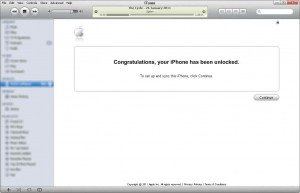
Once you are unlocked via IMEI, then all you have to do is plug it into iTunes.

Today, I will be reviewing an unlocking service, unlock-network.com.

Unlock-Network.com is a very well organized company that was great to work with. They are also very reliable and were the only ones that I felt could handle my personal information.

Now, I’ve made a video showing you how the whole process happens:

So basically, this is how it all works. You go to Unlock-Network.com and you choose which device you want to unlock (in my case, it was the iPhone 3G [S]). Then, you just enter your IMEI (to find your IMEI, dial *#06# on your iPhone) and then choose which network the phone is locked to. (Everyone in the U.S. should click “AT&T/Cingular”.)

Then, you have the option to pay with either PayPal or Google Checkout. It will be $174.99 for an iPhone.

Now, it may look like a steep price at first, but keep in mind that if you live in the U.S. you would have to pay atleast $1,000 for a phone from another country. If you want to have a 32 GB model, then it goes up to $1,500, at least.

It’s a good deal that can potentially save you hundreds.

Now, the unlock is performed remotely, to finish the unlocking process, plug your iPhone into an internet-enabled computer and sync with iTunes.

That’s it!

It’s incredibly easy and I can confirm that this works 100%! It took a matter of hours for me to recieve my confirmation that it was unlocked.

They advertise a 24-48 hours delivery time. They will also give you your money back if the unlock doesn’t work for any reason.

This will work on all baseband versions (they even advise you to update to iOS 4.3.1/4.3.2 before unlocking) and it will work on any and all models of the iPhone 3G [S] and iPhone 4.

So there you go guys! Happy unlocking!

Thanks to Unlock-Network.com for the unlock!

Here’s an image gallery that shows you some highlights from the unlock process:

Incoming search terms:

  • iphone imei unlock
  • unlock iphone imei
  • imei iphone unlock
  • iPhone remote unlock
  • imei unlock iphone
  • remote unlock iphone 4
  • iPhone 4 imei unlock
  • remote unlock iphone
  • imei unlock iphone 4
  • iphone 4 remote unlock
read more

Tutorial: Prevent iPhone 4 Baseband Update iOS 4.3.1 Upgrade


Now that UltraSn0w has been updated to support iOS 4.3.1 and the jailbreak is also untethered, you can now easily upgrade to the latest iOS and preserve your baseband so that you can unlock your iPhone 4.  This tutorial will show you how to preserve your iPhone 4 baseband and unlock.  This is assuming that you have modem firmware 01.59.00.

Sn0wBreeze is a windows version of PwnageTool that will create a custom firmware and preserve your baseband, You can easily use either of these tools but for this tutorial I will show you how to use TinyUmbrella to preserve your baseband and upgrade to iOS 4.3.1 and then run RedSn0w to jailbreak.  This tutorial will work on both Mac and windows.  Just be sure to download the correct programs.

1. Download the latest TinyUmbrella.

2. Start Tiny Umbrella with your iPhone 4 plugged in. Save your SHSH files for iOS 4.3.1. (You should be saving your SHSH files whenever a new firmware comes out!)

3. Click on Start TSS Server. If you get any errors, visit the TinyUmbrella FAQ page and fix the errors before continuing.

4. Launch iTunes and click on restore while holding down the shift key if you are on Windows or the option key if you are on a Mac.

5. Select the iPhone 4 iOS 4.3.1 firmware file. If you don’t have it you can download it here: iPhone 4 Firmware restore file for 4.3.1 (If it saves as a .zip file make sure to rename it to .ipsw).

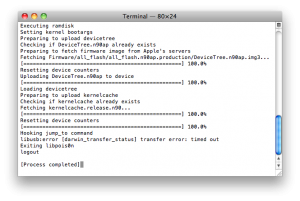
6. The restore process should get a 1013 error. Click on OK and close out of iTunes. Your iPhone 4 will have a connect to iTunes logo displaying. If you get an error other than 1013, it means your baseband was updated. This is likely because you did not have the TSS server running or you are using a device other than an iPhone 4.

7. We need to get the iPhone 4 into DFU mode by holding the home and power button until the screen goes black. Then count to 2 and let go of the power button but keep holding down the home button. Your screen will turn black if you did it correctly. If not you will see an Apple logo and the screen will go back to the connect to iTunes logo. If you see this you need to start step 7 over.

8. Once you are in DFU mode you will need to download Fix Recovery to get out of recovery mode. [Windows Download] [OS X Download]

9. Run Fix Recovery and it will get you to the iPhone activation screen.

10. You will now need to activate your iPhone 4.  To activate it the correct way you will want to put whatever sim card the iPhone is locked to in and start iTunes.  Most iPhone are locked to AT&T so put in any AT&T sim in to activate. It does not need to have service.  If you do not have a sim to activate we will use RedSn0w to Hacktivate.

11. Start RedSn0w and jailbreak. RedSn0w will hacktivate if you did not activate officially in step 10:

redsn0w_0.9.6rc12: (current version as of writing this)

12. Once you are done following the RedSn0w instuctions you will have Cydia on your iPhone’s home screen.  Launch Cydia, do all of the updates and then install the UltraSn0w package to unlock.  You will also want to download our T-Mobile MMS fix if you are on T-Mobile.

Incoming search terms:

  • iphone 4 baseband
  • update iphone 4 baseband
  • upgrade baseband iphone 4
  • save baseband
  • how to upgrade iphone 4 baseband
  • prevent baseband update iphone 4
  • prevent iphone 4 baseband update
  • how to keep baseband on iphone 4
  • How to save baseband
  • update iphone 4 keep baseband
read more

UltraSn0w Unlocked Updated To Support iOS 4.3.1

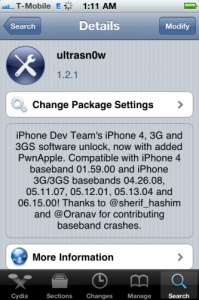
The iPhone Dev Team has updated the UltraSn0w unlocking tool to support iOS 4.3.1.  Please note that this is not a new unlock and is only an update for the older basebands. Currently the only way to have an unlocked iPhone on iOS 4.3.1 is to preserve an old unlockable baseband through a custom firmware IPSW upgrade using something like PwnageTool or TinyUmbrella. This updated UltraSn0w also fixes the signal bar issue (only displaying 1 bar) for those who aren’t using the unlock but retain an older baseband intentionally. UltraSn0w is compatible with iPhone 4 baseband 01.59.00 and iPhone 3G/3GS basebands 04.26.08, 05.11.07, 05.12.01, 05.13.04 and 06.15.00You can get the update for UltraSn0w in Cydia.

I will have some video tutorials up soon on how to update to iOS 4.3.1 and preserve your baseband so that it is compatible with UltraSnow

Incoming search terms:

  • simple mobile iphone 3gs mms
  • ultrasn0w baseband support
  • ultrasn0w basebands
  • ultrasnow baseband support
  • mms settings for tmobile iphone 4 3
  • officeimporterrordomain
  • tmobile
  • mms settings for iOS 4 3 1
  • leimobile com baseband
  • sampref compatibility baseband 05 13 04
read more
Page 1 of 3123