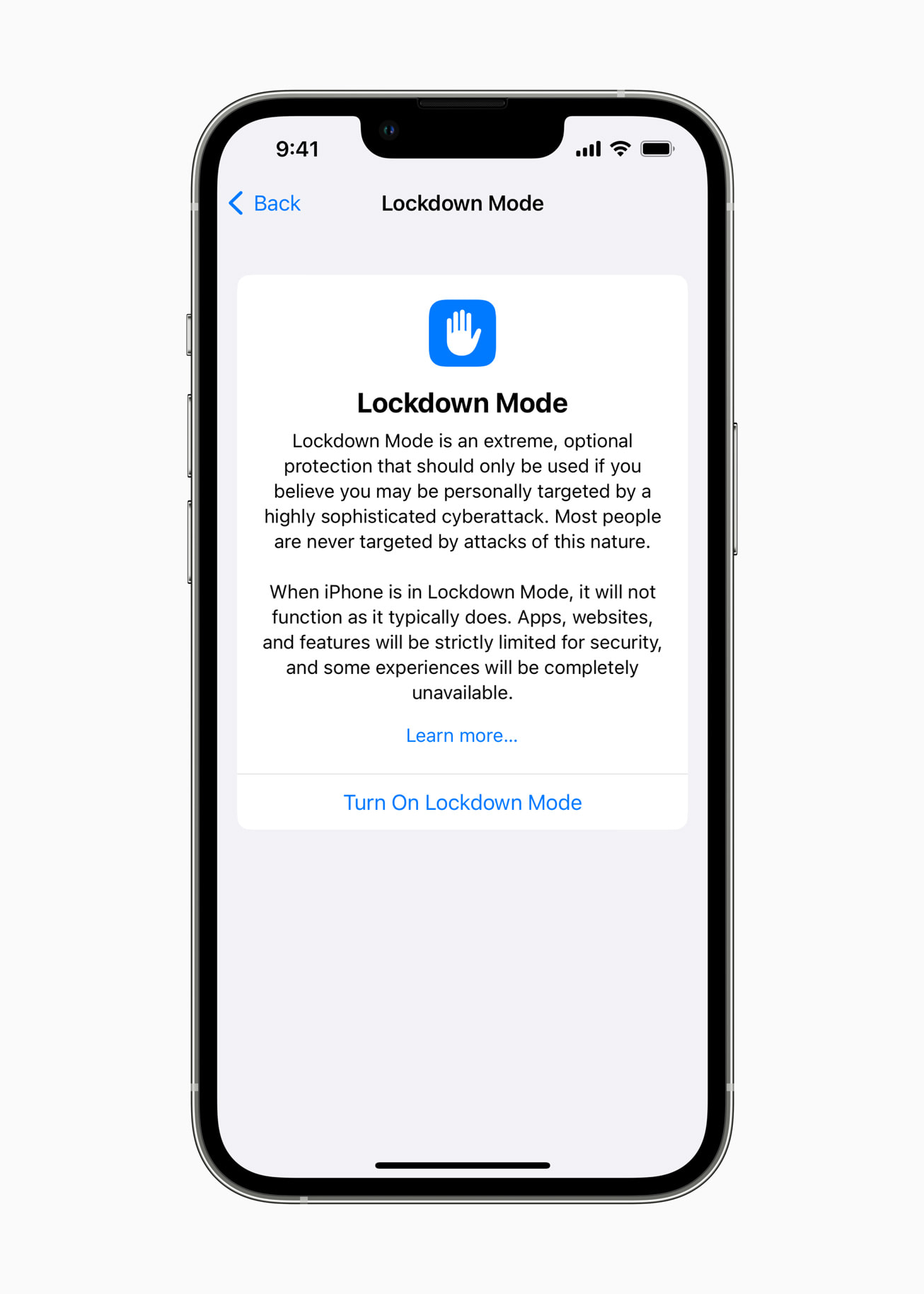
Holiday travel can put an iPhone through unfamiliar airports, hotels, Wi-Fi networks, border crossings, and crowded public spaces. That makes security worth thinking about—but it does not mean every traveler should switch on Apple’s most restrictive protection. Lockdown Mode is an optional defense for people who may be personally targeted by highly sophisticated mercenary spyware. Apple explicitly says most people will never face attacks of that kind.
The useful question is not “Am I traveling?” It is “Do my work, identity, contacts, or current circumstances make me a plausible target for a well-resourced attacker?” If the answer may be yes, Lockdown Mode can reduce the number of ways an attack can reach your device. If the answer is no, routine security habits are usually the better fit.
Who should seriously consider Lockdown Mode?
Apple created Lockdown Mode for the small group of users exposed to exceptional targeted threats. That can include journalists covering sensitive subjects, human-rights workers, political campaigns, government officials, executives handling valuable confidential information, dissidents, and people who have received a credible threat warning. Risk depends on context, not job title alone.
A vacation by itself is not a reason to enable it. Travel may raise the stakes, however, when it overlaps with sensitive work, meetings, regions, or events. If Apple has sent you a threat notification, follow the instructions in that alert and seek qualified security help. Apple’s original Lockdown Mode announcement explains that the feature is meant to reduce the attack surface used by highly targeted spyware.
What changes when you turn it on?
Lockdown Mode intentionally trades convenience for protection. According to Apple’s current support guide, Messages blocks most attachment types and disables some link features. Safari limits certain complex web technologies, so some sites may load slowly, lose fonts or images, or fail to work. Incoming FaceTime calls from people you have not called recently are blocked, as are some Apple service invitations from unfamiliar senders.
The mode also tightens physical and network access. An iPhone or iPad must be unlocked before it can connect to a computer or accessory. The device will not automatically join non-secure Wi-Fi networks, and 2G and 3G cellular support is disabled. New configuration profiles cannot be installed, and an unmanaged device cannot be newly enrolled in mobile-device management while Lockdown Mode is active.
There are everyday side effects. Shared Albums disappear from Photos on that device, photo location data is removed when sharing, and features such as SharePlay may be unavailable. Normal phone calls, plain text messages, and emergency SOS calls continue to work. Because these restrictions are real, turning the feature on “just in case” can create avoidable trouble during a trip.
How to enable it before a high-risk trip
- Install the latest available software first.
- On iPhone or iPad, open Settings > Privacy & Security > Lockdown Mode.
- Tap Turn On Lockdown Mode, confirm again, then choose Turn On & Restart.
- Enter your device passcode and allow the restart to finish.
Apple’s Personal Safety guide notes that you enable the setting separately on iPhone, iPad, and Mac. Turning it on for an iPhone automatically enables it on a paired Apple Watch running watchOS 10 or later. For complete protection, Apple recommends updating and enabling the mode across all supported devices you use.
Test it before departure—not at the airport
If your risk profile justifies Lockdown Mode, switch it on before travel and run through your essential workflow. Confirm that airline and hotel sites load, that required accessories connect while the phone is unlocked, and that important contacts can still reach you. Download boarding passes and critical documents for offline access. Tell trusted contacts that some invitations or rich-message features may not work normally.
Apple lets you exclude a trusted website, app, or—on current system versions—contact when necessary. Each exclusion weakens protection in that area, so use the smallest exception possible and remove it when it is no longer needed. Do not create broad exceptions merely to make every site behave normally.
What most travelers should do instead
For most iPhone owners, the strongest practical checklist is simpler: install software updates, use a strong device passcode, enable two-factor authentication for your Apple Account, keep Find My active, avoid unknown configuration profiles, and do not approve unexpected account prompts. Treat unsolicited attachments and urgent requests with skepticism, even when they appear to come from someone you know.
Lockdown Mode is valuable because it is specialized. High-risk users get a powerful way to reduce exposure, while everyone else can avoid unnecessary limitations. Before holiday travel, make the decision based on targeted-threat risk—not general anxiety about public Wi-Fi or crowded terminals.
Leave a Reply