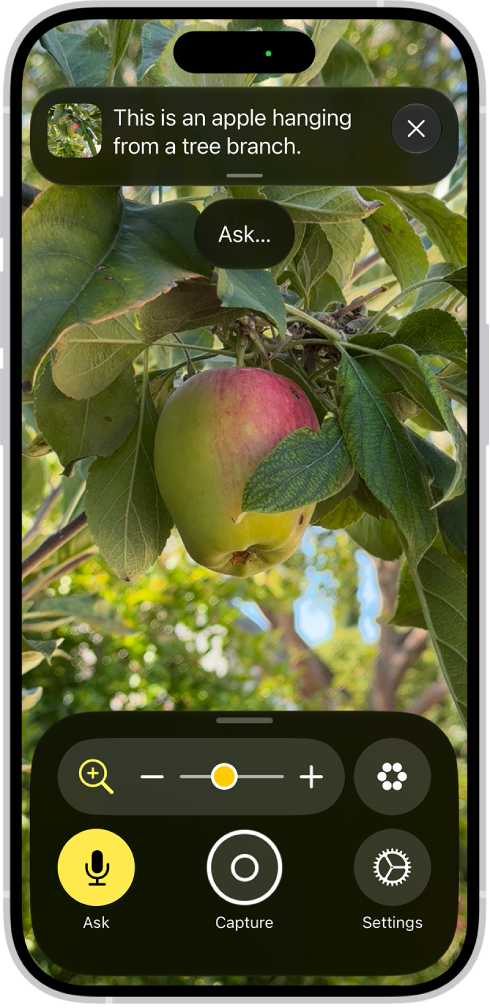
Your iPhone can do far more than enlarge tiny print. In iOS 27, Apple’s built-in Magnifier app can zoom in on nearby objects, reformat text for easier reading, read words aloud, describe parts of your surroundings, and—on supported Apple Intelligence devices—answer questions about what the camera sees.
That makes Magnifier useful well beyond its original accessibility role. It can help with a restaurant menu in dim light, a hard-to-read medicine label, a serial number behind a television, or the total printed at the bottom of a receipt. Because the app is already included with iOS, there is nothing extra to buy or subscribe to.
Start with the basic magnifying glass
Open the Magnifier app and point the rear camera at the text or object you want to inspect. Drag the zoom slider until the subject is comfortable to read. Apple’s current iPhone User Guide for Magnifier also highlights controls for changing contrast and color, turning on the flashlight, switching cameras, and freezing the view.
Freezing a frame is especially useful when the object is in an awkward position. Instead of holding your iPhone behind an appliance while trying to read a label, capture the frame and bring the phone back to a comfortable angle. A frozen frame is temporary unless you choose to share it or save it to Photos.
Ask Magnifier questions in iOS 27
The most notable iOS 27 addition is Ask Magnifier. On an Apple Intelligence-enabled iPhone, tap the Ask button and choose a suggested question or type or speak your own. Apple says the feature can provide information about your surroundings—for example, identifying an item, reporting the color of a shirt, or finding the total on a bill.
This is useful when a simple zoom is not enough. You might ask what an unfamiliar control does, whether two similarly shaped packages are different, or what number appears in a specific part of the frame. Apple notes that Ask Magnifier requires iOS 27 or later and a compatible device, beginning with iPhone 15 Pro and iPhone 15 Pro Max or the iPhone 16 family and newer. Apple Intelligence availability also varies by language and region, and usage limits can apply.
Treat the answer as assistance, not authority. Verify medicine instructions, prices, legal text, and other consequential details yourself or with another trusted source. Camera angle, glare, motion, and partially hidden text can all affect what the system can interpret.
Turn a document into easier-to-read text
Magnifier’s capture tools can do more than take a close-up. Press and hold the capture control, choose Document, and follow the framing guidance. After confirming the capture, open Accessibility Reader to turn the photographed text into a cleaner reading view.
Apple lets you adjust text and background colors, font, text size, bold styling, character spacing, word spacing, and line spacing. You can save a customized theme for repeated use. Magnifier can also read captured text aloud, with controls for playback speed and skipping backward or forward. This can make a dense instruction sheet or printed form easier to follow without repeatedly pinching and panning around a photograph.
Use Detection Mode carefully
Detection Mode can scan the camera view and provide live descriptions as text or speech. Depending on the iPhone model, it can identify nearby doors, people, and furniture. Text detection works across all supported iPhone models, and Magnifier can read detected words aloud. Apple provides separate instructions for detecting doors, people, and furniture and for detecting and speaking text.
Apple explicitly warns that Detection Mode should not be relied on for navigation, emergencies, or situations in which an incorrect description could cause injury. Think of it as an additional source of context—not a replacement for a mobility aid, careful observation, or professional guidance.
Make Magnifier quick to reach
A tool is more useful when it opens immediately. Apple says you can add Magnifier to Control Center, assign it to an accessibility shortcut, trigger it with Back Tap, or map it to a supported hardware control. The exact choices depend on your iPhone. See Apple’s guide to quickly turning accessibility features on or off.
Spend two minutes setting up your preferred shortcut before you need it. Then test three basics: zooming a label, freezing a frame, and opening Accessibility Reader. If your iPhone supports Ask Magnifier, try it on a harmless object so you understand both its convenience and its limits. The payoff is a practical visual toolkit that is already in your pocket.
Leave a Reply