Holiday shopping season is when dormant store accounts suddenly matter again—and when a reused password can turn one old breach into a much bigger headache. Before saving a card, chasing a flash sale, or signing in on a retailer’s app, spend five minutes in Apple’s Passwords app. It can surface risky logins and help you replace them without buying another security tool.
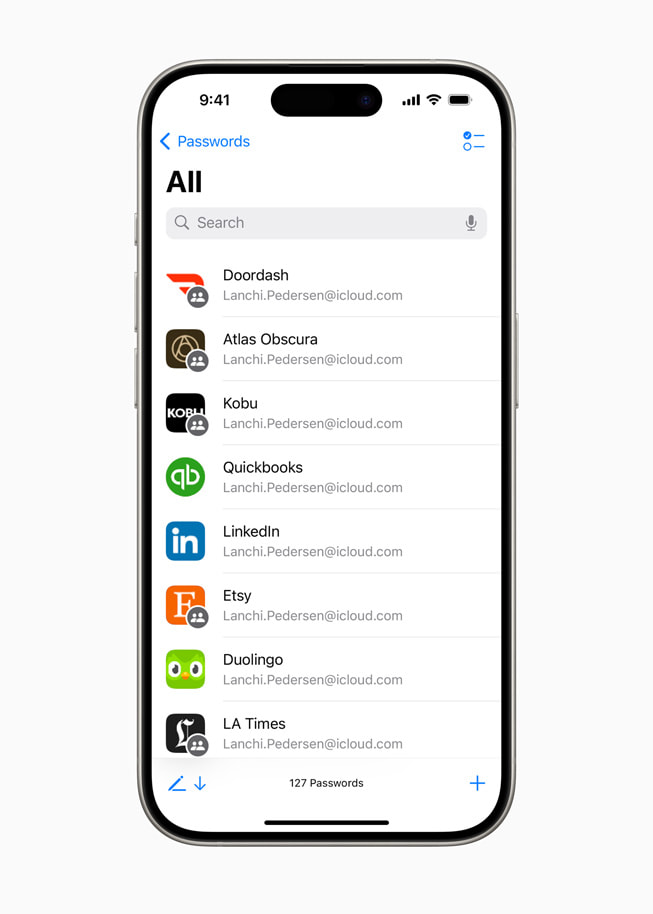
Apple built Passwords on the long-running iCloud Keychain system. The app keeps passwords, passkeys, Wi-Fi credentials, and verification codes together, while flagging common problems such as reused, easily guessed, or leaked passwords. Here is the quickest useful audit to run before the busiest online-shopping weeks.
1. Open Passwords and start with Security
Open the Passwords app and authenticate with Face ID, Touch ID, or your device passcode. Tap Security. This is the priority list—not a reason to change every login you have ever saved.
Focus first on warnings that say a password appeared in a known data leak. Then handle reused passwords, especially for accounts tied to money or identity: your primary email, Apple Account, mobile carrier, bank, payment service, and major retailers. A strong password used on several sites is still risky because one compromised site can expose the key to the others.
Apple says the app can identify passwords involved in known leaks and warn about credentials that are easy to guess or reused. That makes Security a better starting point than scrolling alphabetically through hundreds of saved accounts. Apple’s Passwords app overview explains the feature’s Keychain foundation.
2. Fix the accounts that can unlock other accounts
Do not simply work from top to bottom. Begin with your email account, because password-reset messages for many other services land there. Next protect your Apple Account, carrier account, financial accounts, and any shopping site that stores payment or address information.
For each warning, open the saved item and use the website-change option when available. Let iPhone suggest a unique, strong password, save it, and confirm that the new login works before closing the old session. Avoid making minor variations of the same memorable phrase. The point is to eliminate reuse, not disguise it.
If a retailer no longer exists or you have not used the account in years, deleting the saved password only removes your local credential; it does not necessarily close the online account. Visit the service directly and use its account-deletion process when possible.
3. Choose a passkey when a site offers one
A growing number of apps and websites offer passkeys. A passkey replaces a typed password with a cryptographic credential approved through Face ID, Touch ID, or your passcode. Because there is no reusable secret to type into a convincing fake login page, passkeys are more resistant to phishing.
If an important service offers an “add passkey” option in its security settings, use it. Apple’s iPhone passkey guide covers how passkeys work in apps and websites. Keep the account’s recovery information current, too; stronger sign-in does not help if recovery still points to an abandoned email address or phone number.
4. Turn on two-factor authentication—and store codes safely
For accounts that do not support passkeys, enable two-factor authentication. An authenticator code is generally preferable to relying only on text messages when the service supports it. Passwords can store verification codes and fill them during sign-in, so you do not have to bounce between apps or copy codes into the clipboard.
Save backup or recovery codes somewhere protected, and never paste them into a message or note that other people can casually access. Treat a recovery code like a spare key: it is useful precisely because it can bypass the normal second step.
5. Confirm iCloud Keychain is syncing
A password change is most useful when it reaches every device you actually use. On iPhone, go to Settings > [your name] > iCloud > Passwords, then confirm syncing is enabled. Apple recommends current software and two-factor authentication for your Apple Account before setting up iCloud Keychain.
According to Apple’s iCloud Keychain support page, Keychain data is protected with end-to-end encryption and can sync passwords, passkeys, Wi-Fi passwords, card details, and security codes across approved devices. That lets you make a safer credential on iPhone and use it later on iPad or Mac without weakening it for convenience.
Use shared groups instead of texting a family password
If several people need the same streaming, travel, or household account, create a shared password group for trusted contacts rather than sending the password by text. Group members can receive updates when a shared credential changes. Apple documents shared groups on its password-sharing guide.
Share only accounts whose rules permit it, and keep personal email, banking, shopping, and Apple Account credentials private. When access is no longer needed, remove the person or move the credential out of the shared group and change it.
Your five-minute holiday-shopping checklist
- Open Passwords > Security and address leaked credentials first.
- Give email, Apple Account, carrier, payment, and shopping accounts unique logins.
- Adopt passkeys where available; otherwise enable two-factor authentication.
- Confirm iCloud Passwords & Keychain is syncing to approved devices.
- Use a shared group—not a text message—when trusted family members need access.
You do not need to clean up every old login in one sitting. Fix the handful of accounts that can expose your money, identity, or other accounts, then return to the remaining warnings later. Five focused minutes now can prevent a compromised bargain hunt from becoming the most expensive purchase of the season.
Leave a Reply