Halloween creates exactly the conditions that challenge a phone camera: moving kids, dim porches, bright decorations, deep shadows, and very little time to compose a shot. The good news is that a few deliberate choices can make iPhone photos look dramatically cleaner without extra apps or complicated editing.
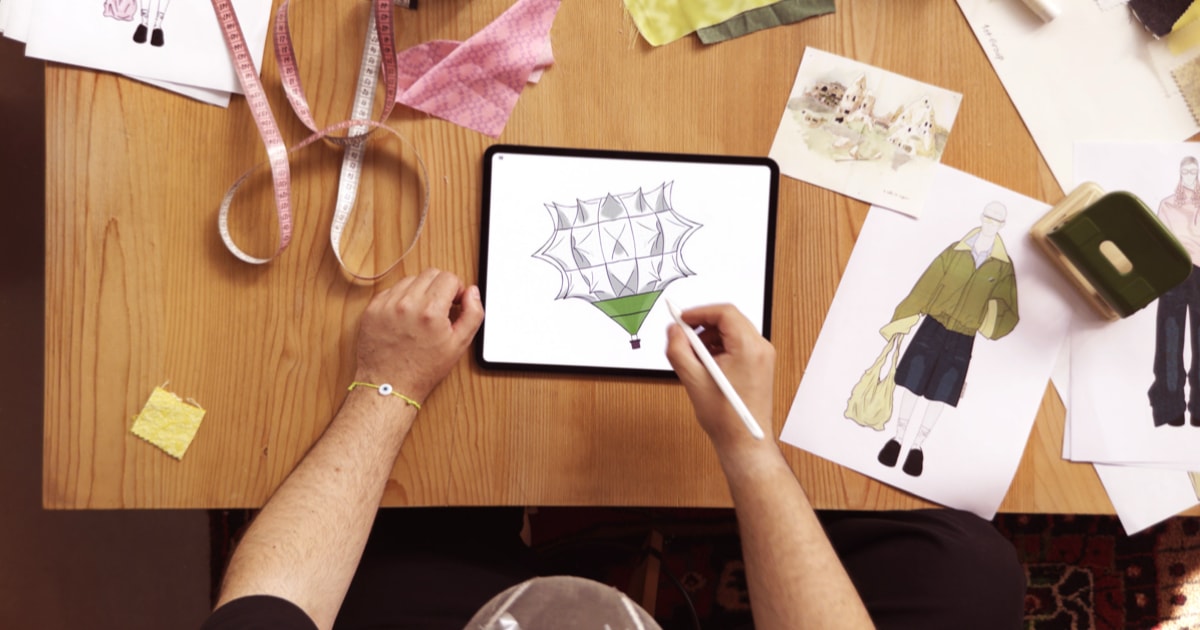
Apple’s recent Cappadocia fashion production is an ambitious example: crews used iPhone 18 Pro Max before sunrise as the available light changed minute by minute. Your Halloween subjects may be smaller and faster, but the same fundamentals apply—control movement, protect the highlights, and give the camera enough stability to collect light.
1. Start with the simple things
Wipe the camera lenses with a clean microfiber cloth before heading out. Costumes, face paint, fingerprints, and a phone pulled repeatedly from a pocket can leave a film that turns porch lights into hazy streaks. Then look for a place with useful light: a porch lamp, shop window, streetlight, or bright decoration can illuminate a face more naturally than the built-in flash.
For a stronger composition, move closer instead of relying on digital zoom. Keep the brightest decoration slightly off-center, leave breathing room around a costume, and check the edges of the frame for parked cars, trash bins, or other distractions.
2. Let Night mode turn on—and watch its timer
On iPhone 11 and later, Night mode activates automatically when the camera detects low light. A yellow moon icon tells you it is active, and the number beside it shows how many seconds the capture may take. That number matters: both the phone and your subject should remain still until the timer finishes.
If everyone can hold a pose, tap the arrow above the viewfinder, choose Night mode, and move the slider toward Max for a longer exposure. Use this for a decorated house or a posed costume portrait—not for a child running toward the next door.
3. Give the iPhone a stable base
Apple recommends holding the phone steady until a Night mode capture completes. Brace your elbows against your body, lean against a wall, or rest the iPhone on a railing. A small tripod is even better. When supported, the camera can use a longer capture and preserve more detail without turning the scene into a bright, noisy blur.
If alignment crosshairs appear, bring them together and keep them there. They are a cue that the phone detected movement during the exposure.
4. Set focus on the face, then lower exposure if needed
Tap the most important face or costume detail in the viewfinder. If a bright jack-o’-lantern or LED decoration is washing out the scene, drag the exposure control beside the focus box slightly downward. A darker image with intact highlights usually looks more atmospheric—and it gives you more to work with later than a clipped white glow.
For a posed group, touch and hold the focus point until AE/AF Lock appears. This helps prevent the camera from changing focus or brightness every time someone shifts.
5. Use flash only when it solves a specific problem
Flash can freeze a nearby subject, but it often flattens makeup, removes the ambient orange or purple glow, and leaves the background almost black. Apple notes that manually enabling flash deactivates Night mode. Try the available-light shot first; turn on flash only when the face is otherwise unreadable or the subject cannot stay still.
6. Choose Live Photos for unpredictable expressions
A perfect smile may happen just before or after the shutter. With Live Photos, you can open the image later, tap Edit, and choose a different key frame. Live Photos also supports Loop, Bounce, and Long Exposure effects. Remember, however, that turning on Live Photos disables Night mode, so use it where porch or indoor lighting is already sufficient.
7. Switch to Burst for action
When someone jumps, spins a cape, tosses candy, or runs past the camera, a multi-second Night mode exposure is the wrong tool. Use Burst mode in better-lit areas and select the sharpest frame afterward. You will trade some low-light quality for a much better chance of catching the decisive expression or gesture.
8. Record short video clips on purpose
For video, favor several steady five- to ten-second clips over one long wandering recording. Hold the phone horizontally if the finished video will be watched on a TV, or vertically if it is intended for Stories or Reels. Start recording before the action begins, keep rolling for a moment after it ends, and avoid rapid zooming.
If you have a tripod, Apple also supports Night mode Time-lapse on compatible iPhones. A fixed view of arriving trick-or-treaters, drifting fog, or changing porch lights can be more memorable than another handheld clip.
The best Halloween camera setup is the one you can repeat
Before leaving, make sure the battery has room for an evening of camera use and that storage is not nearly full. Then use a simple decision rule: Night mode plus support for still scenes, available light plus Live Photos for expressions, and Burst for movement. Take one safe shot first, experiment second, and put the phone away long enough to enjoy the night.
Leave a Reply