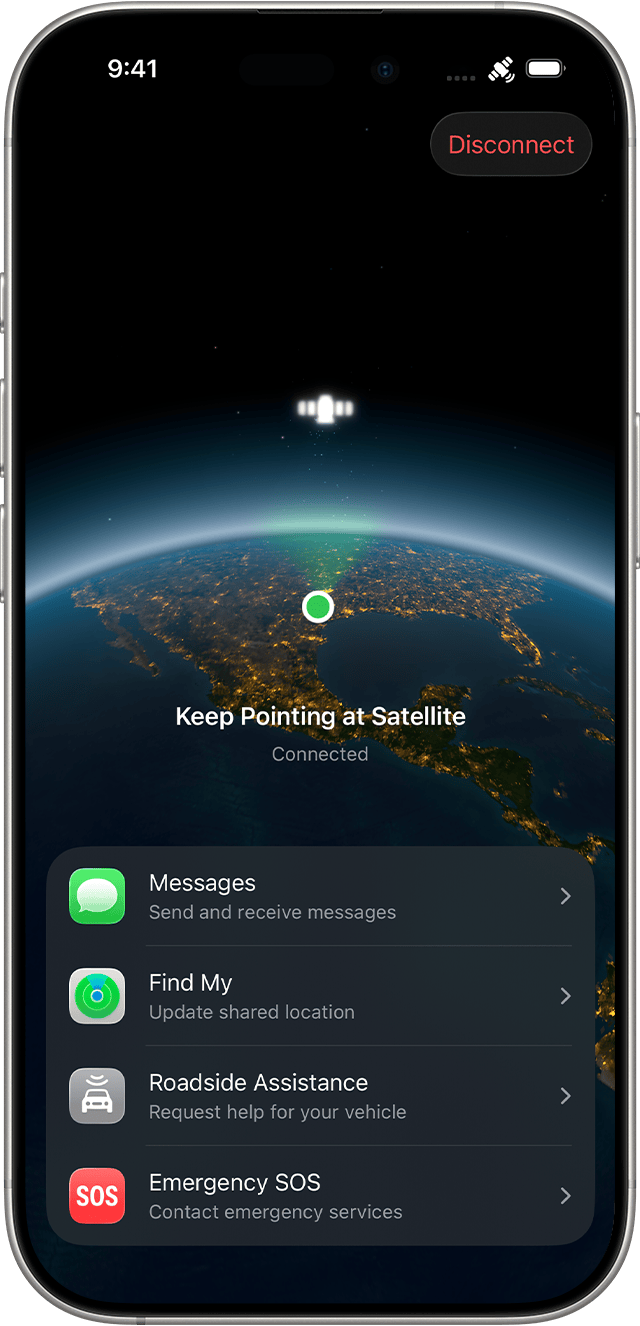
Holiday trips have a way of turning a weak signal into a real problem: a car stops on a rural highway, a hiking route wanders beyond coverage, or a family member needs an update from somewhere with no Wi-Fi. If you carry an iPhone 14 or later, Apple’s satellite tools can help—but the best time to learn them is before you need them.
Apple provides a built-in demo that lets you practice connecting without contacting emergency services. Taking five minutes to try it before a road trip is a smarter precaution than discovering the controls under stress.
What your iPhone can do over satellite
According to Apple’s current satellite connection guide, every iPhone 14 or later model can use supported satellite features when cellular and Wi-Fi coverage are unavailable. Depending on your country, region, carrier, and software version, those features can include Emergency SOS, Roadside Assistance, Messages, and location updates in Find My.
- Emergency SOS via satellite can relay a text conversation and location information to emergency responders or an emergency relay center.
- Roadside Assistance via satellite can connect you with a participating roadside provider when a vehicle problem happens beyond normal coverage.
- Messages via satellite can let you contact friends and family. Apple says iMessages remain end-to-end encrypted in transit.
- Find My via satellite can update your location for people who already receive it through Find My.
Availability is not universal, and iPhone models purchased in certain countries have additional restrictions. Check Apple’s guide for the latest regional details rather than assuming every feature will work at your destination. Apple also says compatible satellite services are included for two years after activation of an iPhone 14 or later, while some carriers may offer their own satellite features.
Try the Satellite Connection Demo now
First, install the latest available iOS update from Settings > General > Software Update. Then go outdoors to an open area with a broad view of the sky and horizon. Dense trees, buildings, hills, mountains, and canyon walls can block or slow a connection.
On recent iOS versions, swipe down from the top-right corner to open Control Center. Tap the cellular connectivity control, choose Satellite, then select Try Demo. You can also open Settings > Emergency SOS for the Emergency SOS demonstration, or Settings > Apps > Messages for the Messages via satellite demo.
When regular service is available, the Satellite option in Control Center opens the practice experience instead of starting a real satellite session. The Emergency SOS demo does not call emergency services. Your iPhone will show an onscreen guide and tell you when to turn left or right to acquire a satellite.
A satellite connection is not ordinary cellular service
Satellites move quickly, sit hundreds of miles above Earth, and offer far less bandwidth than a cell tower. Apple says a message may take about 30 seconds or longer in ideal conditions, and several minutes under light or moderate foliage or in some higher-latitude areas. Heavy cover can prevent a connection entirely.
Hold the iPhone naturally in your hand and follow the directional prompts. Do not place it in a pocket or backpack while trying to connect. You do not need to raise it over your head, and once established, the connection can remain active even if the screen locks. Apple notes that satellite connectivity may not work above 62 degrees latitude, including parts of Alaska and Norway.
Your five-minute pre-trip checklist
- Update iOS. Apple specifically recommends current software before traveling beyond coverage.
- Run the demo outdoors. Learn what the directional connection screen looks like while there is no emergency.
- Confirm location sharing. Make sure the right family members or travel partners are in Find My before departure.
- Charge before remote travel. Bring a power bank and cable; satellite capability is no help after the battery dies.
- Keep a backup plan. Tell someone your route and expected arrival time. Satellite messaging supplements preparation; it does not guarantee a connection everywhere.
The key takeaway is simple: satellite features are most useful when they are familiar. Practice once in a safe, open location, understand the limits, and you will be better prepared if your holiday route takes you off the cellular map.
Leave a Reply