5 More New features of iOS 5

This review was submitted by our guest writer Brody White. If you would like to be a guest writer here check out the Guest Writer page.  You can write about anything you want related to our website and we even provide you with promo codes to apps for you to review.

Here is a little bit more in depth look into iOS 5, of some of the features that were not discussed at Monday’s keynote or anywhere else for that mater.

The camera app. Along with being launched from the lock screen and using the volume up button for shutter the camera app has an interesting new way to view the camera roll. After you have taken a picture and want to preview it you used to have to press the small preview square in the bottom left but now you simply swipe your finger to the right and the photo you just took is displayed. From there you can continue to swipe through all your previously captured photos.

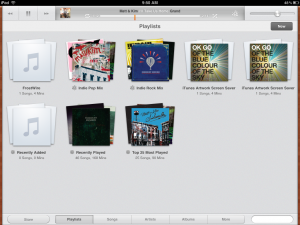
2. The iPad iPod app. To be truthful there actually is no iPod app any longer, it has been replaced with a newly named Music app and music note icon. When entering the app you get a more iTunes like feel with a wood grain outline. The play, previous, and next buttons are all larger and located at the top left. Next to them is a newly designed play bar displaying the progress of your playing music along with album artwork, shuffle and repeat buttons, and genius. There is now a search bar in the bottom right to search through artists, songs, playlist, or any of the sections. Another feature is a button that links to the store which opens the iTunes app. Now two of the more interesting features are that you can now delete music straight from the Music app which is a step towards cutting the cord from your Mac. Also when playing a song and viewing its album artwork you can simply swipe across the artwork and it skips to the next song.

3. Custom Vibrations. It is now possible to make your own vibration pattern for all of your contacts. Located in Settings>General>Accessibility you can turn on custom vibrations, then return to Settings and in Sounds scroll to vibration patterns where you can create custom vibration patterns for certain contacts that you can assign later with the Contacts app.

4. Multitasking on the iPad. Way back on a previous developer preview many of us were exposed to a new way to navigate the iPad. It was multitasking gestures. With the first release most of them could be glitchy, slow, and overall unreliable. But now with iOS 5 they have been redesigned to be fairly smooth and functional. One of the gestures pinching five fingers to return to the home screen has been improved in that when pinching slowly you notice the home screen now fades in from black and the app icons are already there during the animation while previously all you could see were the names of the apps. Another gesture that I use very frequently would be four finger swipe up to reveal the app switcher. This makes switching apps really fast and convenient and now with iOS 5 they fixed just a small thing that I noticed. When using four fingers to swipe up you can continually swipe up and down opening and closing the switcher as before it would either crash due to so much input or would just ignore it. Also you have the ability to swipe four fingers from right to left and it will move to the next open app in the switcher.

5. Notification Center. Ahh the biggest and best new feature of iOS. Everything about Notification center will forever change how we use our iPhones and iPads. It has also changed the settings for notifications as well, when going to these new settings there are now many more options. First you can choose how to arrange you widgets and notifications either manually or by time of arrival. By choosing manual you can have your weather widget at the top at all times or on bottom if you choose along with the location of all your notifications. When you enter the settings for an individual app you now have options for it appearing at all in the center, how many of it’s recent items you would like it to display, if you would like to view it in the lock screen, and the alert style wether it be the cool new banners or the old annoying pop-ups. But out of all these good things I have found one flaw, there are no widgets for the iPad. Why, I do not know, but for some reason iPad users will not get the same luxury of having weather and stocks in their notification center.

Incoming search terms:

  • ios 5 weather widget
  • ios 5 weather lock screen
  • ios 5 clock
  • iOS 5 iPad clock
  • four finger swipe ios 5
  • ios 5 lock screen weather
  • ios 5 compass
  • ios 5 clock app
  • ios 5 stocks app
  • ios 5 three finger swipe
read more

iOS 5 Offers A New Way to Manage Storage

This review was submitted by our guest writer Brody White. If you would like to be a guest writer here check out the Guest Writer page.  You can write about anything you want related to our website and we even provide you with promo codes to apps for you to review.

iOS 5 was released the other day with many new features (200 to be exact). But only 10 were talked about and very few others even mentioned. So Apple has left it up to us to find the unsung heroes of Monday’s keynote.  It seems almost every time I unlock my iPhone I find something new, and as I was browsing settings I came upon an entire new way to manage the storage on your iPhone.

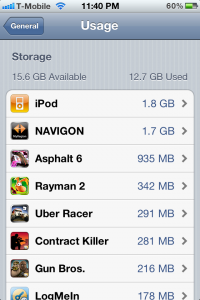
When going into Settings>General>Usage you will find that there is now a storage section that displays the first 10 apps on your iPhone that take up the most memory. The first is usually your music library which you are not allowed to delete any content from; but you can go into a large app like “Navigon” and delete the Documents and Data or the app entirely. By deleting the Documents and Data you delete all of your progress / saved settings from “Navigon” or any other app. For example deleting Documents and Data from “Pages” you would delete all saved documents. Overall it’s a pretty convenient way to free up space on your iPhone since it shows what is taking up the most space.

Also as a quick thought who wouldn’t love it if you could export or email the Documents and Data so that you could import it onto another iDevice say from you iPhone to iPad that way you would be on the same level of Angry Birds on both devices!

Incoming search terms:

  • how to manage storage on iphone
  • navigon ios 5
  • navigon ios5
  • iphone manage storage
  • how to manage space on iphone
  • manage storage on iphone
  • how to manage storage on ipad
  • how to manage ipad storage
  • how to manage iphone storage
  • how to delete documents and data from iphone apps
read more