Simple Mobile iPhone MMS Settings For iOS 5
These are the settings you need to get MMS working on your iPhone running iOS 5.0 and above. This includes iOS 5.1.1 and iOS 6.0. There are 2 ways to get MMS working on your Simple Mobile iPhone. The first requires you to jailbreak. This is the easiest way. If you have a factory unlocked iPhone, you can use the iBackupbot method below to get mms working without a jailbreak.
If you are on the $25 15 Day Talk & Text plan, you cannot use MMS as a data plan is required. When your current plan expires, upgrade your plan to one that includes data so you may take advantage of the MMS feature.
1. Add our Cydia repo to find the iPhone MMS Fix for Simple Mobile.
Our Repo is http://beta.leimobile.com/repo/
Once you install the fix you will need to reboot your phone and go into settings->general->network and make sure the APN is correct.
The settings should look like this:
Apn: simple
Mmsc: http://smpl.mms.msg.eng.t-mobile.com/mms/wapenc
Mms proxy: 216.155.165.050 You may need to change the proxy to 216.155.165.50:8080
Mms max: 1048576
Mms ua prof URL: http://www.apple.com/mms/uaprof.rdf
If you are using the $40 TalkTextILD plan, you cannot use MMS as a data plan is required. When your current plan expires, upgrade your plan to one of the data capable plans – 50MB or 150MB – that Simple Mobile offers.
2. If you are unable to jailbreak and/or have a factory unlocked iPhone you can use iBackupBot which allows you to modify files on your iPhone without jailbreaking.
1. First things first. Make a full backup of your iPhone in iTunes.
2. Download the program iBackupBot. Make sure to select Mac or Windows. You may use the free trial, but it is best to purchase!
3. Launch iBackupBot and just hit OK to all of the messages that may pop up. It may take a while to load all the device information if you have multiple backups saved on your computer.
4. Once loaded you will want to find your most recent backup on the left had side and select it.
5. Next you will see a list of files show up in the righthand box. Scroll down until you see Library/Preferences/com.apple.mms_override.plist.

6. Double click on the mms override.plist and it will pop up a box to edit the file.
7. Download this com.apple.mms_override.plist and paste the contents into the box or manually write it out. It should looks similar to the picture below which is for T-Mobile. Simple Mobile’s will look a bit different. The MMSC string should be http://smpl.mms.msg.eng.t-mobile.com/mms/wapenc

8. Now put a checkmark in the box next to Library/Preferences/com.apple.mms_override.plist and then click on File at the top and select restore.
9. iBackupBot will restore this new edited file onto your iPhone.
10. I will make a video Tutorial soon.
Incoming search terms:
- iphone3 1_6 0_10a403
- simple mobile mms settings for iphone 4 ios 5 1 1
- iphone 5 simple mobile
- plist for simple mobile
- ios 5 0 1 tmobile mms
- simple mobile iphone 4s mms
- simple mobile iphone 5
- lei mobile mms fix t mobile
- simple mobile iphone 4 ios 5
- betaleimobile
T-Mobile MMS Settings For iOS 5 and iOS 6
The MMS settings for T-Mobile on iOS 6. These are the exact same as iOS 4 and iOS 5. Currently the easiest way to get MMS working on tmobile is to jailbreak and install the fix from our repo.
Now what happens if you have an unlocked iPhone 4S running on T-Mobile like I do? Well, right now there is no way to jailbreak the iPhone 4S and so you can’t get MMS working. Don’t worry, LEI Mobile has your back. If you have a factory unlocked iPhone and DO NOT want to Jailbreak or can’t Jailbreak but want MMS settings for T-Mobile I have a solution.
First off here are the correct MMS settings for T-Mobile on iOS 5.
Jailbreaking Required Settings:
Please add our Cydia repo to find the iPhone MMS Fix for T-Mobile.
Our Repo is http://beta.leimobile.com/repo/
To install our repository you will open up Cydia. Click on Manage at the bottom. Click On Edit in the top right. Click Add in the top left. Type http://beta.leimobile.com/repo/ and then press Add Source. Then Click on the LEI Mobile source and install the T-Mobile MMS Fix or the Simple Mobile MMS Fix if you have Simple Mobile.
Once you install the fix you will need to reboot your phone and go into Settings->General->Network-> Cellular Data Network and make sure the APN is correct for both your data APN and your MMS APN. All other settings should be filled in. Depending on your plan you may have different settings. If you don’t know the correct settings try them all. The most common is epc.tmobile.com and wap.voicestream.com. Others include internet2.voicestream.com and internet3.voicestream.com
Here is a video to help out:
UPDATE: This method will work on the latest version of iOS including iOS 6
Now if you have a factory unlocked iPhone and do not want to jailbreak to get MMS working on T-Mobile you can do some tweaking to your backup files.
1. First things first. Make a full backup of your iPhone in iTunes.
2. Download the program iBackupBot. Make sure to select Mac or Windows. You may use the free trial, but it is best to purchase!
3. Launch iBackupBot and just hit OK to all of the messages that may pop up. It may take a while to load all the device information if you have multiple backups saved on your computer.
4. Once loaded you will want to find your most recent backup on the left had side and select it.
5. Next you will see a list of files show up in the right-hand box. Scroll down until you see Library/Preferences/com.apple.mms_override.plist.

6. Double click on the mms override.plist and it will pop up a box to edit the file.
7. Download this com.apple.mms_override.plist (mirror link here) and paste the contents into the box or manually write it out based on the picture below. Then Save and Close the file.

8. Now put a check mark in the box next to Library/Preferences/com.apple.mms_override.plist and then click on File at the top and select restore.
9. iBackupBot will restore this new edited file onto your iPhone. Make sure you set your APN correctly and all of the other info is filled in. The cellular Data APN can be whatever T-Mobile gives you. The MMS APN must be wap.voicestream.com.
10. Reboot and enjoy MMS picture messaging on T-Mobile!
Incoming search terms:
- tmobile mms fix ios 5
- ipad contacts icon
- ibackupbot mms
- iPhone Contacts icon png
- mms fix for iphone 4 ios 5
- mc922ll unlocked
- simple mobile iphone mms settings for ios 5
- tmobile iphone mms settings ios 5
- tmobile ios 5 mms fix
- i5mms repo
T-Mobile iPhone MMS Settings For iOS 4
Earn a Free iPhone 4S. Click Here!
Many people have been asking for the MMS settings to use for T-Mobile. This will work on all versions of the iPhone and any firmware. Whenever you restore your iPhone you lose the settings and since T-Mobile is not an official carrier in the US yet, you will have to manually enter these settings in.
UPDATE: Please add our Cydia repo to find the iPhone MMS Fix for T-Mobile.
Our Repo is http://beta.leimobile.com/repo/
To install our repository you will open up Cydia. Click on Manage at the bottom. Click On Edit in the top right. Click Add in the top left. Type http://beta.leimobile.com/repo/ and then press Add Source. Then Click on the LEIMobile source and install T-Mobile MMS Fix.
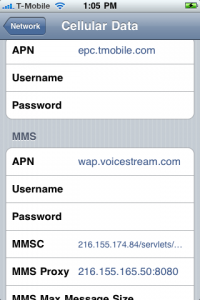
Once you install the fix you will need to reboot your phone and go into Settings->General->Network-> Cellular Data Network and make sure the APN is correct for both your data APN and your MMS APN. All other settings as seen in the picture to the right should be filled in.
———————————–
You will not have to do anything below if you followed the instructions above.
Our Tmobile MMS fix from our repo will support all iOS 4 firmwares: 4.0, 4.0.1, 4.0.2, 4.1, 4.2.1, 4.3, 4.3.1, 4.3.2, 4.3.3 and will most likely work in all other iOS firmwares. In order for MMS to work on non approved carriers you will have to jailbreak.
If the above fails, go to: Settings->General->Network->Cellular Data Network and enter these settings:
APN: wap.voicestream.com
Username:
Password:
MMSC: 216.155.174.84/servlets/mms
MMS Proxy: 216.155.165.50:8080
MMS Max Message Size:
MMS UA Prof URL:
Once you are done just reboot your iPhone and MMS should be working. If they are not working correctly try these settings:
APN: epc.tmobile.com
Username:
Password:
MMSC: http://mms.msg.eng-t-mobile.com/mms/wapenc
MMS Proxy: 216.155.165.50:8080
MMS Max Message Size:
MMS UA Prof URL:
Reboot again and MMS should be working on your iPhone.
Navigate to /var/mobile/Library/Preferences/com.apple.mms_override.plist on your iPhone and edit the file by pasting whats below. You can download a program like ifile from cydia to do this.
<?xml version=”1.0″ encoding=”UTF-8″?>
<!DOCTYPE plist PUBLIC “-//Apple//DTD PLIST 1.0//EN” “http://www.apple.com/DTDs/PropertyList-1.0.dtd”>
<plist version=”1.0″>
<dict>
<key>MMS</key>
<dict>
<key>GroupModeEnabled</key>
<false/>
<key>MMSC</key>
<string>http://mms.msg.eng.t-mobile.com/mms/wapenc</string>
<key>MaxMessageSize</key>
<integer>1048576</integer>
<key>MaxRecipients</key>
<integer>10</integer>
<key>MaxVideoBitrate</key>
<integer>131072</integer>
<key>Proxy</key>
<string>216.155.165.50:8080</string>
<key>UAProf</key>
<string>http://www.apple.com/mms/uaprof.rdf</string>
<key>UserAgent</key>
<string>SonyEricssonW800i/R1L</string>
</dict>
</dict>
</plist>
After that reboot your phone, enter the correct APN settings, and everything should work.
Incoming search terms:
- leimobile repo
- tmobile mms settings
- tmobile mms settings iphone
- tmobile iphone mms settings
- iphone tmobile mms settings
- simple mobile mms settings
- mms settings for tmobile iphone
- tmobile iPhone settings
- tmobile iphone mms
- iphone mms settings