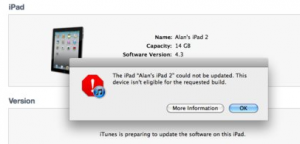
This device isn’t eligible for the requested build

Did you get the error in iTunes that your iPhone, iPad, or iPod Touch could not be updated. This device isn’t eligible for the requested build? Well it seems like many people are getting this error if they are updating to the latest version of iOS and Cydia does not yet have your SHSH files saved. Lots of people will have issues with iOS 5 beta if they have previously used TinyUmbrella

Most likely you installed the program TinyUmbrella to save your SHSH files so that you can downgrade to an older iOS firmware. TinyUmbrella has an option that automatically changes your host file so that it defaults to Cydia. In order to fix the iTunes error you are receiving you need to fix your host file or just open TinyUmbrella up again and click on the Advanced tab.  You will see the second check box say: Set Hosts to Cydia on Exit (if you need a clean restore from Apple uncheck this box).

So make sure you uncheck this box and close both iTunes and TinyUmbrella.  After that you can open up TinyUmbrella and do a clean restore in iTunes.  Doing a clean restore will always update you to the latest iOS version and will update your baseband.

As of writing this I believe Cydia has been updated to support iOS 4.3.3, so you should not see the error this device isn’t eligible for the requested build. If you still see the error just follow the above instructions or fix it manually with the instructions below.


You can manually fix the error “This device isn’t eligible for the requested build” by editing your host file.

Windows Guide:
1. Hit Start and in the search box type CMD and press enter.
2. CMD.exe will pop up.  Type ping gs.apple.com and press enter.
3. If you see something other than Reply from 17.112.176.11: bytes=32 you will need to edit your host file.
4. Right click on the Notepad program and make sure you select run as administrator.
5. Go to File Open and browse to C:\Windows\system32\drivers\etc\ and select hosts file.
6. Find the line 74.208.105.171 gs.apple.com and/or 74.208.10.249 gs.apple.com and Add # sign to the front of it or delete the line(s).
7. Save and exit. You will then want to run the ping command to make sure it worked.

OS X Guide:
1. Open Terminal. You can type Terminal in the search in the upper right corner.
2. When Terminal loads, type ping gs.apple.com and press enter.
3. If you see something other than Reply from 17.112.176.11: bytes=32 you will need to edit your host file.
4. Use Text Edit and open up host file in /etc/hosts
5. Find the line 74.208.105.171 gs.apple.com and/or 74.208.10.249 gs.apple.com and Add # sign to the front of it or delete the line(s).
6. Save the file as a new file to the desktop.
7. Copy the new file and overwrite the one in /etc/hosts.  It will ask you for your administrator password before it will overwrite.
8. You will then want to run the ping command to make sure it worked.

Incoming search terms:

  • iphone not eligible for requested build
  • The iphone could not be restored This device isn\t eligible for the requested build
  • This device isn\t eligible for the requested build ios 5
  • This device isn\t eligible for the requested build 4 3 3
  • iphone isn\t eligible for requested build
  • the iphone could not be restored this device isnt eligible for the requested build
  • not eligible for requested build
  • this device isnt eligible for the requested build 4 3 3
  • THE IPHONE COULD NOT BE UPDATED THIS DEVICE ISN\T ELIGIBLE FOR THE REQUESTED BUILD
  • This device is not eligible for the requested build
read more