iOS 4.3 Camera Bug: Flash is Disabled The iPhone needs to cool down before you can use the flash

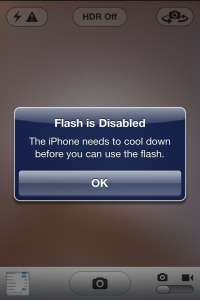
So apple has a bug that has been known since iOS 4.3. I saw this bug in iOS 4.3.1 and it still has not been fixed in iOS 4.3.2.  When you launch the camera app going through the specific steps below you will get a message that says: Flash is Disabled The iPhone needs to cool down before you can use the flash.

I know for a fact that my iPhone is not overheating and have even found out a way to replicate this camera roll bug.  To see the bug for yourself on iOS 4.3.1 and 4.3.2 follow these steps:

1. Open up the camera app.
2. Switch to the front facing camera.
3. press the camera roll button in the bottom left corner.
4. After viewing the picture press Done.
5. Switch back to the rear camera.
6. You will see a flash symbol with a triangle and exclamation point.  Press this and you will see the message pop up on the screen: Flash is Disabled The iPhone needs to cool down before you can use the flash.

This is a really annoying bug but to fix it for now is just to exit out of the camera app and re-open it.  Hopefully Apple fixes this in the next iOS firmware update.

Incoming search terms:

  • iphone needs to cool down before flash
  • flash is disabled iphone
  • iphone flash disabled
  • the iphone needs to cool down flash
  • iPhone flash cool down
  • the iphone needs to cool down before you can use the flash
  • iphone 4 flash needs to cool down
  • iphone flash is disabled
  • how to fix the flash on iphone 4
  • Iphone needs to cool down flash
read more

Tethered Jailbreak for iOS 4.3.2 Available

The Latest version of RedSn0w will jailbreak iOS 4.3.2 but will be a tethered jailbreak.  Tethered means that you will have to hook it up to the computer and run RedSn0w every time you reboot the device.  Hopefully they can create a way to untether soon.

In order to jailbreak iOS 4.3.2 you just have to run RedSn0w and point to the iOS 4.3.1 firmware file.

As soon as we have more information we will let you know!

Incoming search terms:

  • bbyscroopy pirat3 com cydia not working
  • 4 3 2 mms
read more

Apple Releases iOS 4.3.2

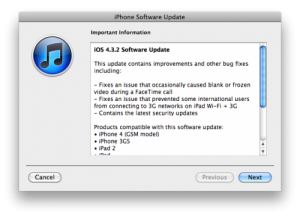
Apple just released iOS 4.3.2 which contains improvements and other bug fixes including:
-Fixes an issue that occasionally caused blank or frozen video during a FaceTime call
-Fixes an issue that prvented some international users from connecting to 3G networks on iPad W-Fi + 3G
-Contains the latest security updates

Products compatible with this software update:
-iPhone 4 (GSM model)
-iPhone 3GS

-iPad 2 (2,1=WiFI, 2,2=AT&T, 2,3=Verizon):

iPad2,3_4.3.2_8H8_Restore.ipsw

iPad2,2_4.3.2_8H7_Restore.ipsw

iPad2,1_4.3.2_8H7_Restore.ipsw

-iPad
-iPod touch (4th generation)
-iPod touch (3rd generation)

You can find all iOS firmware downloads here: http://leimobile.com/firmware-downloads/

ULTRASN0W UNLOCKERS: Stay away and make sure that you save your SHSH files with TinyUmbrella for iOS 4.3.1 before the window closes.

Incoming search terms:

  • iphone 4 mms tmobile 4 3 2
  • 4 3 2 MMS FIX
  • mms fix for iphone 4 4 3 2
  • tmobile iphone mms settings 4 3 2
  • tmobile mms settings iphone 4 3 2
  • iphone 4 4 3 2 tmobile mms settings
  • facetime waiting for activation 4 3 2
  • tmobile mms 4 3 2
  • 4 3 2 tmobile
  • facetime activation tmobile
read more

Tutorial: Prevent iPhone 4 Baseband Update iOS 4.3.1 Upgrade


Now that UltraSn0w has been updated to support iOS 4.3.1 and the jailbreak is also untethered, you can now easily upgrade to the latest iOS and preserve your baseband so that you can unlock your iPhone 4.  This tutorial will show you how to preserve your iPhone 4 baseband and unlock.  This is assuming that you have modem firmware 01.59.00.

Sn0wBreeze is a windows version of PwnageTool that will create a custom firmware and preserve your baseband, You can easily use either of these tools but for this tutorial I will show you how to use TinyUmbrella to preserve your baseband and upgrade to iOS 4.3.1 and then run RedSn0w to jailbreak.  This tutorial will work on both Mac and windows.  Just be sure to download the correct programs.

1. Download the latest TinyUmbrella.

2. Start Tiny Umbrella with your iPhone 4 plugged in. Save your SHSH files for iOS 4.3.1. (You should be saving your SHSH files whenever a new firmware comes out!)

3. Click on Start TSS Server. If you get any errors, visit the TinyUmbrella FAQ page and fix the errors before continuing.

4. Launch iTunes and click on restore while holding down the shift key if you are on Windows or the option key if you are on a Mac.

5. Select the iPhone 4 iOS 4.3.1 firmware file. If you don’t have it you can download it here: iPhone 4 Firmware restore file for 4.3.1 (If it saves as a .zip file make sure to rename it to .ipsw).

6. The restore process should get a 1013 error. Click on OK and close out of iTunes. Your iPhone 4 will have a connect to iTunes logo displaying. If you get an error other than 1013, it means your baseband was updated. This is likely because you did not have the TSS server running or you are using a device other than an iPhone 4.

7. We need to get the iPhone 4 into DFU mode by holding the home and power button until the screen goes black. Then count to 2 and let go of the power button but keep holding down the home button. Your screen will turn black if you did it correctly. If not you will see an Apple logo and the screen will go back to the connect to iTunes logo. If you see this you need to start step 7 over.

8. Once you are in DFU mode you will need to download Fix Recovery to get out of recovery mode. [Windows Download] [OS X Download]

9. Run Fix Recovery and it will get you to the iPhone activation screen.

10. You will now need to activate your iPhone 4.  To activate it the correct way you will want to put whatever sim card the iPhone is locked to in and start iTunes.  Most iPhone are locked to AT&T so put in any AT&T sim in to activate. It does not need to have service.  If you do not have a sim to activate we will use RedSn0w to Hacktivate.

11. Start RedSn0w and jailbreak. RedSn0w will hacktivate if you did not activate officially in step 10:

redsn0w_0.9.6rc12: (current version as of writing this)

12. Once you are done following the RedSn0w instuctions you will have Cydia on your iPhone’s home screen.  Launch Cydia, do all of the updates and then install the UltraSn0w package to unlock.  You will also want to download our T-Mobile MMS fix if you are on T-Mobile.

Incoming search terms:

  • iphone 4 baseband
  • update iphone 4 baseband
  • upgrade baseband iphone 4
  • save baseband
  • how to upgrade iphone 4 baseband
  • prevent baseband update iphone 4
  • prevent iphone 4 baseband update
  • how to keep baseband on iphone 4
  • How to save baseband
  • update iphone 4 keep baseband
read more

UltraSn0w Unlocked Updated To Support iOS 4.3.1

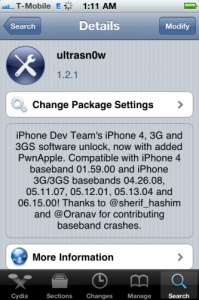
The iPhone Dev Team has updated the UltraSn0w unlocking tool to support iOS 4.3.1.  Please note that this is not a new unlock and is only an update for the older basebands. Currently the only way to have an unlocked iPhone on iOS 4.3.1 is to preserve an old unlockable baseband through a custom firmware IPSW upgrade using something like PwnageTool or TinyUmbrella. This updated UltraSn0w also fixes the signal bar issue (only displaying 1 bar) for those who aren’t using the unlock but retain an older baseband intentionally. UltraSn0w is compatible with iPhone 4 baseband 01.59.00 and iPhone 3G/3GS basebands 04.26.08, 05.11.07, 05.12.01, 05.13.04 and 06.15.00You can get the update for UltraSn0w in Cydia.

I will have some video tutorials up soon on how to update to iOS 4.3.1 and preserve your baseband so that it is compatible with UltraSnow

Incoming search terms:

  • simple mobile iphone 3gs mms
  • ultrasn0w baseband support
  • ultrasn0w basebands
  • ultrasnow baseband support
  • mms settings for tmobile iphone 4 3
  • officeimporterrordomain
  • tmobile
  • mms settings for iOS 4 3 1
  • leimobile com baseband
  • sampref compatibility baseband 05 13 04
read more
Page 1 of 212