Guide: Jailbreak iOS 6 iPhone 4, iPhone 3GS, and iPod Touch 4th Gen Only

Please not that this guide is for A4 devices only. This includes the iPhone 4, iPhone 3GS, and the 4th gen iPod Touch only. You should also be advised that if you require a software unlock using UltraSn0w, stay away from updating to iOS 6. Please also be aware that this is a tethered jailbreak. A tethered jailbreak means you will have to hook it up to your computer to boot everytime you restart if you want the jailbreak. This may be a hassle for some people, but most people never turn their iPhone off.

Before we get stated, you should create a full backup in case something goes wrong.

  1. Download and install the latest version of iOS 6 from either the over the air update or plugging your iPhone or iPod Touch 4th gen into the computer. You will also need to have the iPSW file saved on your computer. You can find the direct download link for iOS 6 here.
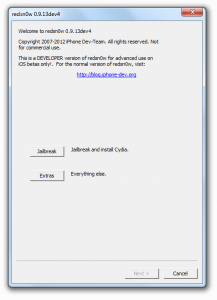
  2. Download RedSnow 0.9.13dev4 for either Windows or Mac OS X.
  3. Open up the RedSnow application. On windows you will want to right click on the file and run as Administrator. On OS X Mountain Lion you will need to hold down control and then click on the executable.
  4. Click on the Extras button and point to the correct iOS 6 ipsw for your device.
  5. Now just follow the onscreen guide to complete the process. It will guide you how to set your iPhone or iPod Touch into DFU mode.
  6. After it has completed you will have to boot your device in a tethered mode. You will just plug your device into the computer, click Extras, and select boot tethered.
  7. That is it. Enjoy iOS 6 jailbroken.

If you would like to get Cydia on your Jailbroken iOS 6 iPhone, you will have to manually install it. Here are the instructions:

  1. If you are on windows, you will need to download and run Putty or another SSH program. If you are on a Mac, open up Terminal.
  2. Note the IP address of your iPhone. The iPhone and your computer should be on the same wireless network.
  3. Type  ssh root@(the ip address of your iphone). It should looks something like this: ssh root@192.168.1.4
  4. You will then be prompted asking for a password. The password is alpine.
  5. Once logged in paste in the command: wget -q -O /tmp/cyinstall.sh http://downloads.kr1sis.net/cyinstall.sh && chmod 755 /tmp/cyinstall.sh && /tmp/cyinstall.sh
  6. After that your device should be rebooted and you will now see a cydia icon on your homescreen. Enjoy iOS 6 with Cydia.


Incoming search terms:

  • iphone2 1_6 1_10b141
  • iphone4 1_6 0_10a523 _restore ipsw
  • iphone 2 1_6 1_10b141
  • iphone 3 3_6 0_10A403
  • iphone3 1_6 1_10b144 _restore ipsw download
  • iphone3 3_6 0_10a523
  • ipod4 1_6 0_10a523 _restore
  • iPhone2 1_6 0_10A523 _Restore
  • ipod4 1_6 0_10a523
  • iphone4 1_6 0_10a523
read more

Storage Wars! Dropbox Vs. Google Drive

Google recently released their newest product, Google Drive. Which is very similar to Dropbox, Too Similar. So I’m here to show you which one is better.

Round 1 – Paid Storage Costs

Dropbox currently offers:

Storage Monthly Rate
50 GB $9.99
100 GB $19.99
+200GB $200
1 TB $795(per year)


However Google Drive Offers:

Storage Monthly Rate
25 GB $2.49
100 GB $4.99
200 GB $9.99
400 GB $19.99
1 TB $49.99
2 TB $99.99
4 TB $199.99
8 TB $399.99
16 TB $799.99

Google Drive gives you much more flexibility at a cheaper rate, So for this round Google Drive wins.

Round 2 – Free Storage

Dropbox Google Drive
2GB* 5GB

*Dropbox provides users with 2 GB of free storage space just for signing up. Users can get more by referring friends to the service, 500MB per referral, up to a limit of 16 GB.

The winner of this round is Google Drive since you don’t have to do anything to receive your FREE storage. So so far

Round 3 – Access to your storage

Google Drive is available on Android, Mac OS X, and Windows. iOS apps are on the way.

Dropbox is available for iOS, Blackberry, Android, Mac OS X, Linux, and Windows.

So Dropbox wins this round!

Round 4 – Searching for you data

Google is know for search. It uses that expert knowledge in Google Drive and it shows. Search is simple, easy, and quick because the search bar is always with you. Google Drive can even recognize objects in your images and text in scanned documents.

Navigating away from the Dropbox home page takes the search bar away and you have to go back home to find it. Search is not inscribed into every page of Dropbox.

So The search giant, Google wins again.

Round 5 – Security

Making sure your files are secure and not susceptible to unwanted access is very important.

Dropbox enlists bank-level security for your files. Its site says, “Your files are actually safer while stored in your Dropbox than on your computer in some cases.”

Google Drive links directly to your existing Google Account, allowing you to enable two-step authentication and the security features you may already be familiar with. Two-step authentication gives you an added layer because even if someone has your username and password, they still will not be able to access your files.

If someone wants to access your Dropbox account, they just need your username and password.  So Google Drive wins once again.

Round 6 – Deleted Files

What happens if you delete an item by mistake? Dropbox keeps a one-month history of your work. Any changes can be undone, so files can be restored after deletion, Which is a great lifesaver. Google Drive tracks every change you make. When you hit the save button, a new revision is saved. You can look back as far as 30 days automatically, or choose a revision to save forever.

Google Drive is a better choice, the saving forever option is awesome because it’s… forever(Hopefully =D).

Round 7 – Offline Availability

As long as you have the Dropbox app installed on your computer, files can be accessed when offline from the folder that lives on your desktop. You always have your files, whether or not you have a connection without having to do anything.

Google Drive works the same way, so this one is a tie.

Round 8 – Syncin’

When adding a file to your Dropbox from your computer it’s as simple as dragging and dropping. One Dropbox issue is  when syncing, the original file is removed from your computer’s hard drive and is only accessible in Dropbox.

When you upload a document to Google Drive it gives you the option to convert that file to Google Docs for easy sharing and collaboration. The process is simple and fast. In addition, the ability to open over 30 file types right in your browser. Simply Amazing.

Google Drive wins Again.

Round 9 – Sharing

Google Drive allows you to create a document and work on it at the same time with a colleague. You choose who has access and who can edit or make changes. The changes then appear instantly so everyone can stay in sync.

Dropbox prides itself on simplicity. Instead of just inviting someone to change a document you can invite someone to view a folder and all of its contents. Dropbox says, “it’s as if the folder is saved directly to the other person’s computer.” Dropbox wins in this round

Round 10 – Support

Google Drive gives links to many FAQs however there isn’t any forums or any “live” help . If you have a specific issue, then you may be out of luck. Dropbox support includes, a detailed tour of the entire product, community forums, and the ability to submit a help request where the support team will get back to you  on your problem.

The ability to receive a response from a real person is much better.So again Dropbox wins again.

Results

It was a great fight. Dropbox offers some excellent features and benefits that really make the App stand out. Its ability to be accessed from virtually every mobile and desktop platform is crucial. Many people will still favor Dropbox, since they’re solely a storage company.

Google Drive is declared the winner. Google’s flexible storage plans, deep search integration, security, and ability to open more than 30 different file formats from a web browser helped them secure the title.

Ending Scoreboard:

Google Drive: 7

Dropbox: 4


Incoming search terms:

  • s2end and amazon fire
  • how to remove unwanted icons from fake iphone md234LL
read more

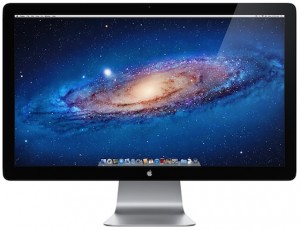
Apple Releases New Macs & Thunderbolt Display

Hey guys, well, today, Apple released a whole lot of products, and we have a round-up of all of the hardware related articles from today, along with a part of the article that I’m referencing.

Make sure to check them all out! There was a lot of information released today by Apple. Great updates to all of their products and along with Lion, this makes for a very great line up.

So let’s get started!

Incoming search terms:

  • Intel HD Graphics 3000 vs AMD Radeon HD 6630M
  • amd radeon hd 6630m vs intel hd 3000
  • AMD Radeon HD 6630M vs Intel HD Graphics 3000
  • ND294LL/A
  • thunderbolt display vs cinema display
  • Intel HD Graphics 3000 versus AMD Radeon HD 6630M
  • AMD Radeon HD 6630M
  • AMD Radeon HD 6630M graphics processor
  • Intel HD Graphics 3000 processor vs AMD Radeon HD 6630M graphics processor
  • Mac mini Intel HD Graphics 3000 vs AMD Radeon HD 6630M
read more

Apple Releases New Mac Mini; Kills Optical Drive

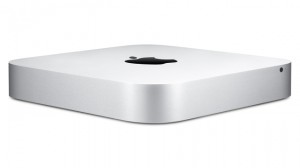
Apple has also released a new Mac Mini this morning, they dropped the price by $50 on the base model, but have effectively killed the super drive (optical drive).

The new Mac Mini includes a dual-core Core i5 or quad-core Core i7 processor, AMD Radeon HD 6630M discrete graphics and support for Thunderbolt. You can also choose between an OS X Lion version or a server version!

Here are the tech specs for the new Mac Mini:

  • 2.3 GHz dual-core Intel Core i5 Mac mini with 2GB of RAM, 500GB hard drive and a starting price tag of US$599. Optional 8GB memory and 750GB hard drive.
  • 2.5 GHz dual-core Intel Core i5 Mac mini with 4GB of RAM, 500GB hard drive and a starting price tag of $799 (US). Optional 2.7GHz dual-core Core i7 processor, up to 8GB of memory, and a 750GB hard drive or 256GB solid state drive.
  • 2.0 GHz quad-core Intel Core i7 Mac mini with Lion Server, 4GB of RAM, dual 500GB hard drives and a starting price of $999. Optional 8GB memory, two 750GB hard drives, or up to two 256GB solid state drives.

The new Mac Mini is available today online and tomorrow July 21 in Apple retail stores.


Incoming search terms:

  • AMD Radeon HD 6630M review
  • mac mini i7 review
  • mac mini 6630m review
  • AMD Radeon HD 6630M mac mini review
  • mac mini AMD Radeon HD 6630M
  • radeon 6630m review
read more

Today’s Mac OS X Lion release is actually older than the Developer GM seed

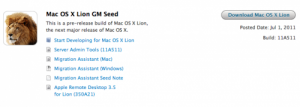
Today’s Mac OS X Lion release is actually an older build  than the Developer GM seed. Mac OS X Lion was officially released to the public on July 20th 2011. Apple requires you to download their latest software operating system through their Mac AppStore.  You will notice that the build number is 11A494 and that the GM build number that was released to developers is 11A511.

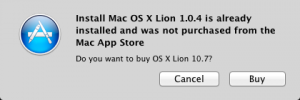
Why is it that developers received a higher build number? If you try to download the RTM (Release To Market) build from the Mac AppStore while you are running the developer GM build you will get the error message: “Install Mac OS X lion 1.0.4 is already installed and was not purchased from the Mac App Store. Do you want to buy OS X Lion 10.7?”

I imagine Apple wants developers to purchase the final version and to do a fresh clean install from their Snow Leopard machine.  As soon as we have information as to how developers can upgrade from Lion GM to the final build we will let you know.


Interesting note: If you look in the package for the developer GM release, at the info.plist file, you’ll see the following version number:  11A494

Incoming search terms:

  • mac os x lion torrent
  • lion build number
  • 11A494
  • mac os lion torrent
  • Lion 11A494
  • os x lion build number
  • lion final build number
  • lion release build
  • mac os x lion build numbers
  • lion release build number
read more
Page 1 of 612345...Last »