iOS 5 Offers A New Way to Manage Storage
This review was submitted by our guest writer Brody White. If you would like to be a guest writer here check out the Guest Writer page. You can write about anything you want related to our website and we even provide you with promo codes to apps for you to review.
iOS 5 was released the other day with many new features (200 to be exact). But only 10 were talked about and very few others even mentioned. So Apple has left it up to us to find the unsung heroes of Monday’s keynote. It seems almost every time I unlock my iPhone I find something new, and as I was browsing settings I came upon an entire new way to manage the storage on your iPhone.
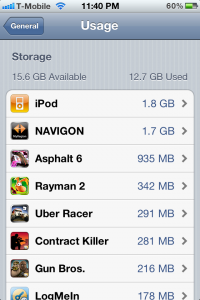
When going into Settings>General>Usage you will find that there is now a storage section that displays the first 10 apps on your iPhone that take up the most memory. The first is usually your music library which you are not allowed to delete any content from; but you can go into a large app like “Navigon” and delete the Documents and Data or the app entirely. By deleting the Documents and Data you delete all of your progress / saved settings from “Navigon” or any other app. For example deleting Documents and Data from “Pages” you would delete all saved documents. Overall it’s a pretty convenient way to free up space on your iPhone since it shows what is taking up the most space.
Also as a quick thought who wouldn’t love it if you could export or email the Documents and Data so that you could import it onto another iDevice say from you iPhone to iPad that way you would be on the same level of Angry Birds on both devices!
Incoming search terms:
- how to manage storage on iphone
- navigon ios 5
- navigon ios5
- iphone manage storage
- how to manage space on iphone
- manage storage on iphone
- how to manage storage on ipad
- how to manage ipad storage
- how to manage iphone storage
- how to delete documents and data from iphone apps


