How to Watch ABC Live on iPhone

ABC just updated their iPhone app to allow Live Streaming. Currently this feature is only available to residents in New York City and Philadelphia.  The preview is set to end on June 30th and they will constantly be adding more cities.

If you want to watch ABC live early before your city is announced we have found a way to do it. You will need to have a jailbroken iPhone for this to work and you are limited to whats currently live in the selected cities.

1. Open up Cydia and download a fake GPS location app. I choose to use LocationHolic.
2. Open up your fake GPS location app and set your location to either New York City or Philadelphia as these are the only participating cities at the time of writing this article.
3. Now open up Watch ABC and enjoy live TV on your iPhone!

Incoming search terms:

  • watch abc live on iphone
read more

How To: Enable LTE on iPhone 5 for T-Mobile


UPDATE 3/31/13: Now a super easy way to install. Just install the CommCenter Patch and the LTE enable from out repo. This will be a better solution for people who want to enable LTE on their unlocked iPhone 5. Not only does it save people the time and hassle of having to go into the iPhone’s system files, but it also creates an automatic backup of the original carrier.plist should the choose to revert.

Here are the steps to follow:

1. Open Cydia
2. Tap “Manage” and then tap “Sources”
3. Tap “Edit” then tap “Add” and put the following URL into the text box: http://v.backspace.jp/repo
4. Once the URL is entered in tap “Add Source” and allow for it to download all of the repo’s info and packages.
5. After your iPhone has refreshed, tap the v.backspace.jp/repo field or go to the search bar and find the package CommCenter* patch…
6. Once you have found it, install it and then reboot your iPhone once completed.

7. After the iPhone has restarted, open Cydia once again.
8. Tap “Manage” and then tap “Sources”
9. Tap “Edit” then tap “Add” and put the following URL into the text box: http://beta.leimobile.com/repo/
10. Once the URL is entered in tap “Add Source” and allow for it to download all of the repo’s info and packages.
11. After your iPhone has refreshed, tap the LEIMobile field or go to the search bar and find the package LTE Enabler for T-Mobile…
12. Once you have found it, install it and then reboot your iPhone once completed.

13. After the iPhone restarts, allow it to acquire signal and display the T-Mobile logo then go to where you edit the APN settings (Settings –>General–>Cellular) click reset network settings. Once that is done, enable the LTE toggle and you’re good to go. The APN to connect to T-Mobile LTE is fast.t-mobile.com and the apn for Internet Tethering on T-Mobile is pcweb.tmobile.com


Update 3/28/13 Part III: Updated the main file to fix a calling issue as people were still reporting it. ISR for LTE wasn’t enabled. The Phone, rather than connecting to the strongest signal for voice, remains connected to the LTE tower during calls and reduces call quality. The latest fix enables ISR. Just follow the instructions below the red text to install the latest version.


Update 3/28/13 Part II: Everyone Just follow the original instructions below the red text to install the new files over the previous ones. There should now be 4 files instead of 3. We added a carrier.pri file.


UPDATE 3/28/13: THE text in RED is instructions ONLY for people who installed the initial fix we released. If you are brand new or unsure proceed with the 15 step instructions below the RED Text

Users have reported bad calling quality, inability to make/receive calls, and downgrading to 4G HSPA+ while on a phone call. We did take note of the issue and took a close look at the LTE coding. VoLTE (Voice over LTE) was enabled by mistake but has been fixed in this updated version. Please follow the below instructions to fix this issue. If you have any other concerns or problems please leave a comment below.

1. On your iPhone please tap this link: http://iphone2.googlecode.com/files/T-Mobile%20LTE%20V2.zip
2. Tap “Open in iFile” and once in iFile tap “Unarchiver”. A new version of the “Overrides_N41_N42.pri” will appear.
3. Tap the clipboard icon at the bottom and tap “cut”
4. Now tap “done” at the top and tap the house icon at the bottom then tap “Library”, then tap “Carrier Bundle.bundle” (the one with blue text), and then tap edit at the top again and tap the clipboard icon. Tap “paste” and it will auto inject the updated carrier file into the carrier folder. Be sure to chose the overwrite option.
5. After this has been done, exit iFile and reboot your iPhone. That’s it!

Did this fix your issue? Please let us know below in the comments section.

START HERE Manual method: 

So you purchased an unlocked iPhone 5 before T-Mobile released their new version of the iPhone 5 that supports 1700mhz. This could be the AT&T model or the officially unlocked version sold by Apple. Please understand that if you have a Verizon iPhone 5 you will not be able to connect to T-Mobile’s LTE network. It does not have the correct LTE band. Currently T-Mobile only has a few cities listed that have support for LTE and they are upgrading towers all year long.

Now that you have an unlocked AT&T model A1428 or an officially unlocked model A1428 you can proceed to follow the instructions below to load a custom carrier file onto your iPhone and enable LTE. This will only work on A1428 model iPhone 5′s.

This is the guide to enabling LTE on your iPhone 5 model A1428 for T-Mobile.

1. Open Cydia
2. Tap “Manage” and then tap “Sources”
3. Tap “Edit” then tap “Add” and put the following URL into the text box: http://v.backspace.jp/repo
4. Once the URL is entered in tap “Add Source” and allow for it to download all of the repo’s info and packages.
5. After your iPhone has refreshed, tap the v.backspace.jp/repo field or go to the search bar and find the package CommCenter* patch…
6. Once you have found it, install it and then reboot your iPhone once completed.

7. After the iPhone has restarted, open Cydia once again.
8. Search for iFile. The free version includes basic features. You will want to purchase it to take advantage of all of the features.
9. Once you have found it, install it. No reboot is required, though you can do it just to be on the safe side.

10. Once iFile has been installed, close Cydia and click on this file from your iPhone and click “Open in iFile”
11. Once you’re in iFile tap “Unarchiver” and 3 files will show up above T-Mobile LTE.zip
12. At the top, tap “edit”and tap the dots with a check mark next to carrier.plist, carrier.pri, overrides_N41_N42.plist, and overrides_N41_N42.pri
13. Tap the clipboard icon at the bottom and tap “cut”
14. Now tap “done” at the top and tap the house icon at the bottom then tap Library, then tap Carrier Bundle.bundle (the one in blue), and then tap edit at the top again and tap the clipboard icon. Tap “paste” and it will auto inject the carrier files into the carrier folder overwriting the other files. (you may want to make a backup of these files in case anything goes wrong or we have a backup below.)

15. After the files have been placed, exit iFile and restart iPhone. After the iPhone restarts, allow it to acquire signal and display the T-Mobile logo then go to where you edit the APN settings (Settings –>General–>Cellular) click reset network settings. Once that is done, enable the LTE toggle and you’re good to go. The APN to connect to T-Mobile LTE is fast.t-mobile.com and the apn for Internet Tethering on T-Mobile is pcweb.tmobile.com


Here is a link to the original file in case you run into any issues. Download the original carrier file here. replace carrier.plist with the file you just downloaded. You also need to delete any overrides_N41_N42 files and the new carrier.pri included in the Release 2 bundle that were placed in the Unknown.bundle carrier bundle.

If you run into any problems please leave a comment below. A rare issue that happens is that is doesn’t work while the apn settings tab disappears. A simple fix to this is to go into var/mobile/Library/Carrier Bundles/overlay and delete any and all files in that folder and then restarting the phone 2 times. The first reboot you need to let it acquire signal. It will take awhile but will eventually acquire it. After the signal is found it will say T-Mobile 3G and then this will be where the 2nd reboot must be done. After the 2nd reboot it will acquire signal faster this time and display T-Mobile 4G. Once you see the 4G icon that’s when you know it has worked. But this is a rare occurrence but should be a disclaimer and this fix should be available to the people that install it.


[Thanks Joe Brown! for the initial fix! Thanks Sky Zangas for the Debian Package!]

Incoming search terms:

  • fast t-mobile com
  • tmobile iphone 5 lte settings
  • how to enable lte on iphone 5
  • t-mobile lte apn
  • iphone 5 apn settings for tmobile
  • how do I set T-Mobile 4G LTE APN on iPhone 5
  • t mobile lte apn settings
  • leimobile lte
  • leimobile tmobile lte
  • t mobile iphone 5 lte settings
read more

Review: UnlimTones – Best FREE app on Cydia to Create Ringtones

Sick and Tired of paying Apple extra money to make ringtones from the songs you already own? Have a Jailbroken iPhone with Cydia? Well, get the Cydia application called UnlimTones from the BigBoss Repository. The current version as of today is 4.7-57 and was developed by UnlimApps. (com.i4iphones.unlimtones)

When you start the app you will be presented with a handful of options:

Top Ringtones: Allows you to see the top ringtones people are currently using. You can then click on the song and download set ringtones based on time of the song that other users have created. You do not even have to own the song and you can download these ringtones.

Top By Genres: Allows you to browse ringtones by the different genres.

Top in United States: Check out the top ringtones today in the US.

My Ringtones: Clicking this connected you to their Facebook App.

SMS Alerts: List of the top SMS alerts that other users have created.

Browse Genres: Allows you to click on a genres and then narrow your search down by Artist.

Top Albums: Get ringtones from the top albums.

Make Ringtone: One of the best features of this application. You can simply create a ringtone from any song you have on your iPhone. Just select the song, choose the start and end time and then save the ringtone. It will automatically show up in you Ringtones located in Settings –> Sounds –> Ringtone. Once you find it located in there, just check it and it is now your default ringtone.

Manage Tones: This allows you to manage all of the ringtones that you have downloaded and created with the app.

Overall I would have to say that this is the best Ringtone Application for the iPhone that is located on Cydia. Again, you will have to jailbreak your iPhone and have Cydia installed in order to get UnlimTones.

Incoming search terms:

  • how to use unlimtones
  • unlimtones ringtone location
  • how do u use unlimtones
  • unlimtones
  • download unlimtones
  • unlimtones not showing up in ringtones
  • unlimtones manage tones
  • how to use unlimtones version 4 7-57
  • cydia free iphone ringtone
  • unlimitones
read more

Guide: Jailbreak iOS 6.0/6.0.1/6.0.2/6.1 with evasi0n for Windows

This guide is for the windows users. Jailbreaking iOS 6.x is super simple. Basically you just click a button and you are done. above is a video of an iPad 3 being jailbroken on iOS 6.1 using the evasi0n tool.

Follow these basic steps to get a jailbroken iOS device running iOS 6.x.

  1. Download evasi0n. You can choose Mac, Linux, or Windows. For this guide we will use Windows.
  2. Since it is a .zip file you download, you will want to extract all of the files.
  3. Open the extracted folder and right click on evasi0n.exe.
  4. select Run as Administrator.
  5. evasi0n will detect your device if you have it plugged into your computer. If you do not have it plugged in, do it now.
  6. Make sure to disable your passcode if you have one set on your iOS device.
  7. Click Jailbreak.
  8. DO NOT touch your computer or your iOS device and grab a snack or go clean your room. It will take about 5 minutes.
  9. It will go through a bunch of steps on it’s own such as preparing jailbreak data, injecting jb data, and your device will reboot.
  10. After the reboot it will install Cydia, and Cydia’s packages.
  11. The app will then give you the message: “Now please unlock your device, search for a newly created icon named ‘Jailbreak’, and tap on it JUST ONCE. The screen will quickly go black and then return to the home screen again.”
  12. Just follow those instructions and you are almost done. The jailbreak icon will look like the picture shown here:
  13. It will then start injecting remount payload and then after a few seconds it will say Root Filesystem successfully remounted! and then injecting jb data stage 3.
  14. Done! Device will now reboot. Please be patient, the boot will take a bit longer that usual to do a first time setup. The device may restart several times.
  15. You now have a Jailbroken iOS 6.x device with Cydia on your screen. Enjoy.

Incoming search terms:

  • leimobile com youtube
  • lei Mobile jailbreak
  • evasi0n not detecting device
  • h20 6 1 2 problems
  • jailbreak ios 6 0 1
  • Mms hack iphone 4g iso 6 1 simple mobile
  • unlock 6 0 envasi0n
read more

evasi0n iOS 6.x Jailbreak Now Available!

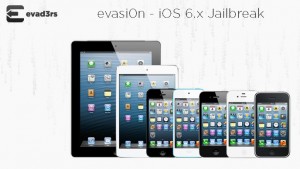
The very first iPhone 5, iPad mini, and iPad 4th generation Jailbreak is here. Team Evaders has made everyone’s dreams come true today. Not only is this the first jailbreak for many new devices, but it is also a first time the iPhone Dev Team has given a release date and followed through.

The evasi0n software is very simple to use and requires just a few short minutes of your time. We will however have a tutorial on how to jailbreak your iOS 6.1 device with the evasi0n software soon.

Some notes to consider:

  • If you have and iPhone 4 or an iPod Touch 4th Generation tethered Jailbreak on iOS 6.1, you should restore to a clean stock version of iOS 6.1, but NOT if you use ultrasn0w for an unlock.
  • For those with a tethered jailbreak of iOS 6.1, there will be a debian available in Cydia to get your device untethered. You will have to take caution though as it is less tested than the original evasi0n app. This will save you some time from having to re-install your Cydia tweaks.
  • Please disable the lock passcode of your iOS device before using evasi0n. It can cause issues.
  • The evad3rs have a paypal account and are now accepting donations. Please donate so that this is not the last jailbreak for iOS.

You can download the evasi0n Jailbreak at their official website.

Incoming search terms:

  • iPhone4 1_6 1_10B145_Restore ipsw
  • iphone2 1_6 1 restore
  • jailbreak pour iphone2 1_6 1
  • jailbreak 1_6 1_10b141
  • utorrnt download iphone2 1_6 1
  • mobile cydia exe
  • best repo source cydia
  • iphone model m350
  • evasi0n mms
  • beta leimobile in cydia
read more
Page 1 of 812345...Last »